Datastore Permissions
Overview
Datastore permissions are essential for controlling access to your entire Datastore. 4D offers several strategies to ensure the security of the data in your datastore.
Configuring Datastore Permissions
To set permissions for the datastore:
- Select the resource name
ds, from the dropdown list to signify the Datastore resource. - Or, type the resource name
ds, directly into the search bar.
The  icon in the dropdown list indicates the Datastore ressource.
Max Restriction to Gradual Expansion
To address the risks of unrestricted access, an approach called All Data Inaccessible by Default is employed. This strategy restricts access to the entire datastore by default, gradually expanding access to specific dataclasses through other privileges achieved by applying Dataclasses Permissions.
You have two ways to lock everything:
- Turn on Restrict Access By Default, or
- Create a privilege (e.g. "none"), create a permission "ds", check every action, and never add this privilege to any role (the administration role included).
Then open gradually with permissions on dataclasses and functions; login function is granted to guest.
These strategies are discussed in the 4D documentation.
After establishing a privilege like Restricted, you assign permissions to the datastore, covering a range of actions from Read to Execute.

Full Access to Gradual Restriction
Alternatively, the guest privilege provides another strategy for managing unauthorized users. This privilege allows full access to the entire datastore by default, with specific resources being restricted through other privileges achieved by applying Dataclasses Permissions.
Introducing the Guest Privilege
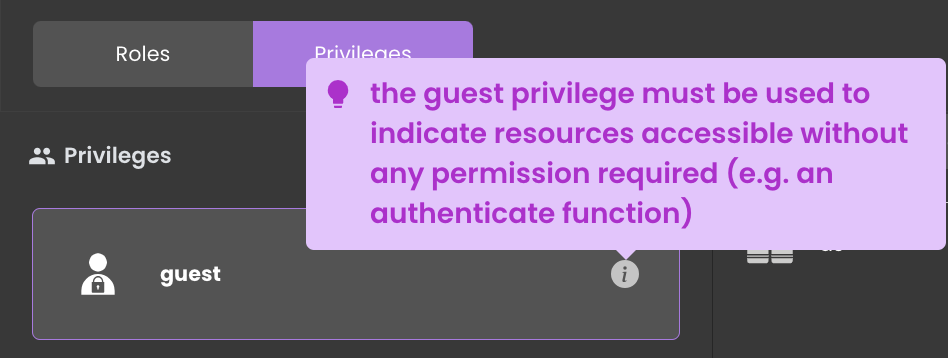
When a role lacks specific privileges, the guest privilege is assigned to that Session. This allows users without defined privileges to access non-restricted resources while preventing potentially harmful activities with other resources, ensuring that users interact within well-defined boundaries.
The guest privilege grants access to all resources if no explicit permissions are in place.
Configuring the Guest Privilege
The guest privilege is established in the Privileges tab by default, ready to welcome users who have not yet established a formal identity.
Configuring Read Access
To grant read access to the guest privilege, follow these steps:
- Remove complete permissions control over the Datastore from the
Restrictedprivilege. - Assign the Read permission specifically to the datastore within the
guestprivilege, thereby endowing it with the capability of read-only access.

By making this change, the guest privilege now allows users to access a wealth of data, including details about flights, hotels, and activities, while ensuring that critical information remains safeguarded against unauthorized modifications.

Not all data should be accessible to users. Sensitive user data, confidential reports, and other private information must remain restricted.
To balance data accessibility and security, the next crucial step is to utilize DataClass Permissions to selectively control access to specific sets of data.
Guest Inherited Permission
guest permissions are granted to every session.

The  icon indicates that the permission is inherited, granting access to the resource. However, when you remove this privilege, the inherited permissions also vanish from the privilege that was receiving them.
You can retain the inherited permission by checking the checkbox  , ensuring that even if the originating privilege is deleted, the permission set on the resource remains intact.