Overview
A permission is the ability to do an action on a resource. For example, execute the ds.myTable.myFunction() represents a permission. Each permission can be given to one or more privileges.
When no specific permission has been defined for a resource, access to the resource may be automatically unrestricted or restricted depending on the default mode defined for the project.
Permission Types
Permissions define essential actions on resources, covering tasks such as creation, reading, updating, deletion, description, execution (for functions), and promotion (also for functions).
See the permission action description in the 4D documentation.
Note that the Delete column is the drop action in the roles.json file.
Options

Restrict Access by default
This selector allows you to configure how resources are accessed when no specific permission is defined for them. It is set by default.
For information on the restriction modes, please refer to the 4D documentation.
Force login
This selector helps you to control the number of opened web sessions that require 4D Client licenses. It is set by default.
See the Force Login page for more information.
Managing permissions
The permissions grid provides a comprehensive interface for managing access control.
Search Functionality
The search bar  allows users to quickly locate permissions by typing keywords. The search dynamically narrows the list of displayed permissions based on the input.
Filter Functionality
The filter menu  enables users to narrow down permissions based on specific categories.
Available filters include:
- Datastore
- Dataclass
- Singleton
- Functions
- Attribute
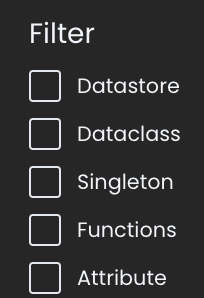
Users can check the desired filter options to display only the relevant permissions.
Create a Permission
To create a new permission in the current privilege:
-
Click on the
Create a permissiondropdown menu .
-
The menu displays a list of available assets (e.g., Datastore, Functions, Singletons, Attributes, datastore functions (
ds.myFunction)).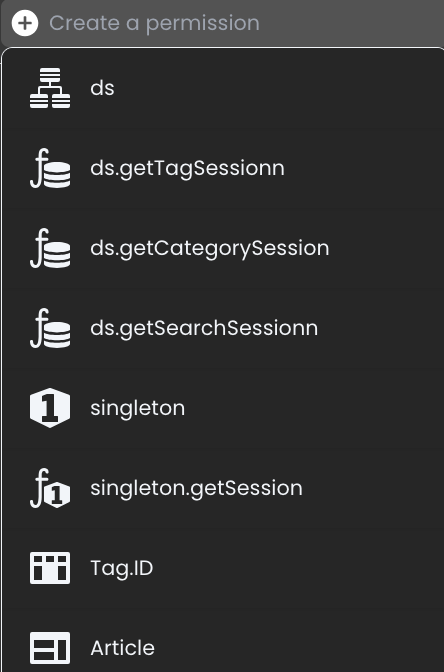
-
Select the desired asset to create and configure its permissions.
Resources already displayed in the grid (including rows coming from included privileges) are not offered in the dropdown: click their row instead.
Assign Permissions
Permissions for specific resources—such as Datastore, DataClass, and Attribute—are easily set by checking the corresponding boxes in the permissions grid. Each permission (such as Read, Create, Update, Delete, Execute, and Promote) can be granted by selecting the checkbox under the relevant column for each resource.

Reset Permissions
The reset functionality allows users to clear all permissions for the current privilege. This action removes all configurations, providing a clean slate:
-
Click the Reset button
 .
-
A confirmation dialog will appear, asking the user to confirm or cancel the action
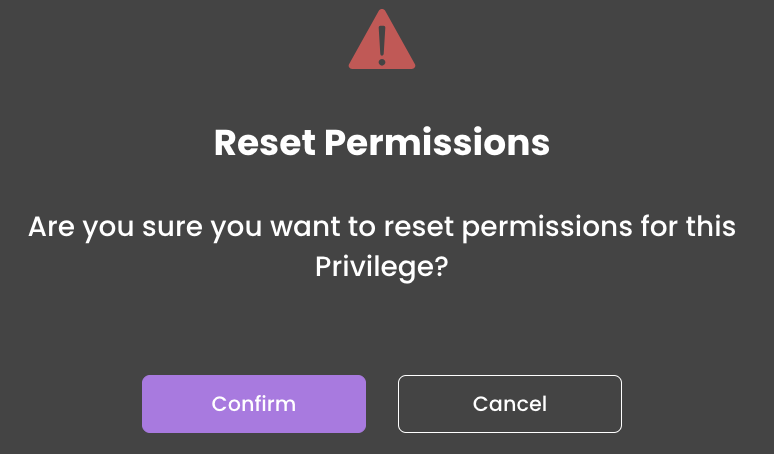 .
Clean Non-Existing Resources
If a resource is unavailable (e.g., an attribute name from the Tag DataClass was deleted), it appears in red in the permissions table. A shadow effect is applied to indicate that the resource no longer exists. The resource icon also turns red, providing a clear visual indication of its unavailability. The privilege card also shows "This privilege uses non-existing resources".
Also, the clean button to remove permissions, related to resources that no longer exist, becomes enabled. 

Once the clean button is clicked, all permissions associated with non-existing resources will be deleted from the catalog across all privileges.
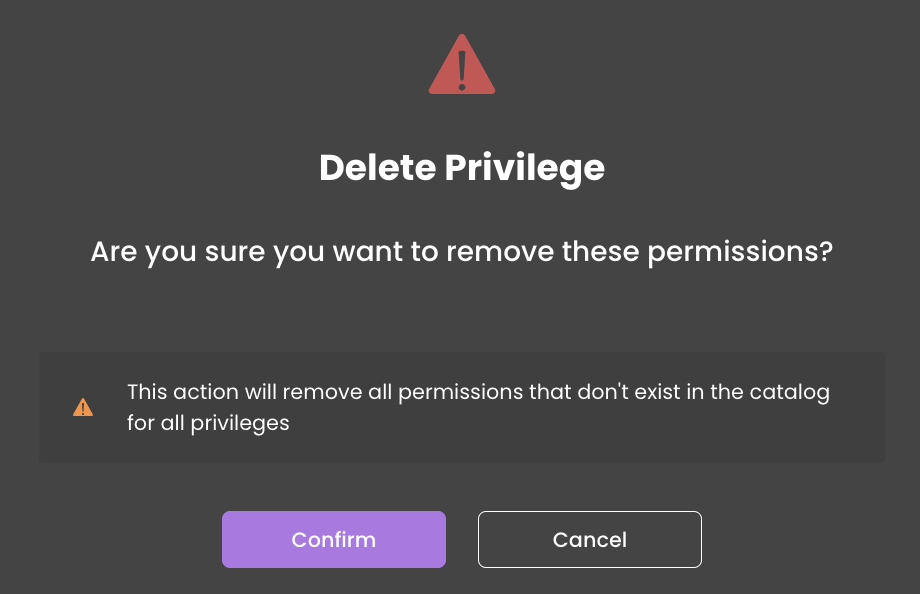
When all resources are available, the Clean button is disabled. 
Inheritance
The engine resolves permissions per resource and per action: a dataclass or function permission replaces the datastore one, an attribute permission adds a condition. For a detailed description of inheritance principes, see the Inherited permissions section in the 4D documentation.
Show/Hide Inherited Permissions
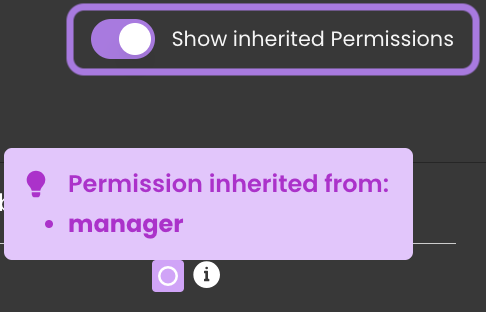
When managing permissions, you can toggle between showing and hiding permissions coming from included privileges. By default, inherited permissions are visible, allowing you to see which permissions a privilege has inherited from other privileges for a resource. You can toggle off this option to hide any inherited permissions and focus only on permissions explicitly defined within the current privilege.
-
Enabled: Displays all permissions defined for resources, including those inherited from other privileges.
-
Disabled: Hides inherited permissions defined for resources. If a resource's permissions are entirely inherited and no explicit permissions are defined in the current privilege, the entire resource row will be hidden. If an explicit permission exists (e.g., Execute) for a resource, only the inherited permissions (e.g., Create) are unchecked while the resource row remains visible.
The privilege grid shows the permissions defined in the privilege and, with the toggle, those of its included privileges; it does not show what a dataclass, attribute or function inherits from the datastore, nor what a dataclass permission replaces.
The effective permissions are shown in the Detailed Permission Review of a role.