Sessions Page
The Sessions page lists all active sessions connected to the server, including Client, Web, REST, and SOAP sessions.
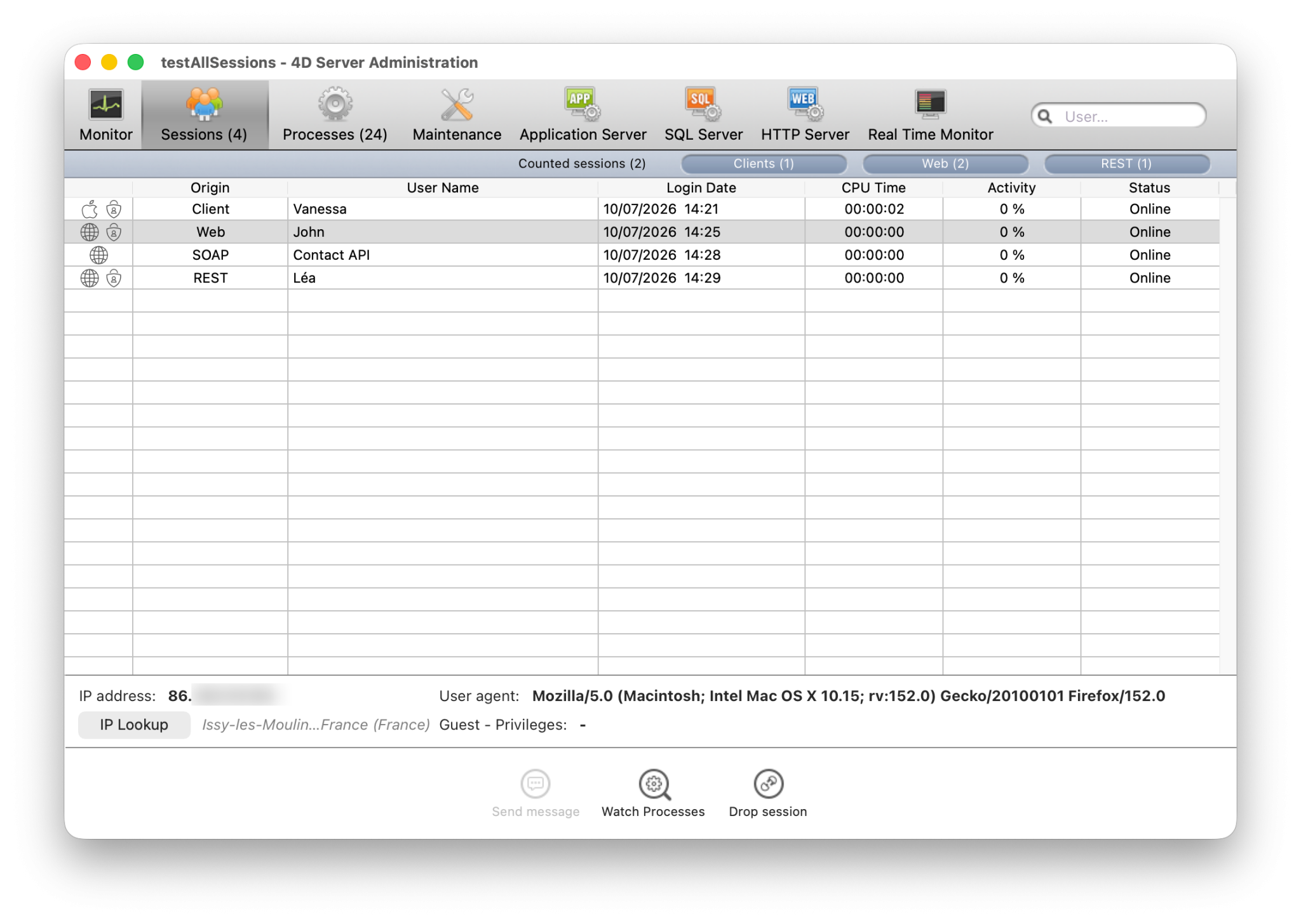
The Sessions button indicates, in parentheses, the total number of active sessions (this number does not take into account any display filters applied to the window).
The page contains a dynamic search area, filtering controls, and administration buttons. You can modify the order of the columns by dragging and dropping their header areas.
You can also sort the list by clicking a column header. Click repeatedly to toggle between ascending and descending order.

List of Sessions
Each row represents one active session.
The list provides the following information:
- Icon representing the type of session (Apple for macOS Client sessions, Windows for Windows Client sessions, globe for Web, REST, and SOAP sessions). And an additional visual indicator shows whether the session is authenticated.
- Origin: Type of session (Client, Web, REST, or SOAP).
- User Name: Name of the connected 4D user, or the alias defined using the
SET USER ALIAScommand when applicable. For Web, REST, or SOAP sessions, no user name is displayed unless one has been associated with the session using theuserNameproperty of thesetPrivileges()function. - Login Date: Date and time when the session was established.
- CPU Time: CPU time consumed by the session since it was created.
- Activity: Percentage of server activity currently devoted to the session (dynamic value).
- Status: Status of the session. Client sessions can be Online, Sleeping, or Unreachable. Web, REST, and SOAP sessions always have the Online status.
Additional information is available in the detail panel when a session is selected.
Session detail panel
Selecting a session displays additional information in the lower panel.
Client sessions
The following information is available:
- System username: Name of the operating system session opened on the remote machine.
- IP address: IP address of the remote machine that opened the session.
- Machine name: Name of the remote machine.
- 4D Write Pro: Indicates whether the session user belongs to a group that grants access to 4D Write Pro.
- 4D View Pro: Indicates whether the session user belongs to a group that grants access to 4D View Pro.
REST, Web, and SOAP sessions
The detail panel displays information such as:
- Guest status: Indicates whether the session is a Guest session. Guest sessions are unauthenticated Web sessions.
- Privileges: List of privileges associated with the session.
- IP address: IP address of the remote machine that opened the session.
- User agent: Identifies the client application, browser, or service that initiated the session.
IP Lookup button
IP Lookup button is enabled when a public IP address is displayed. You can click on the button to retrieve the geolocation of the selected session.
If the information is available, the location is displayed next to the IP Lookup button in the format City, Country. Otherwise Not found is displayed.
Search and Filtering
Search bar
The search field can be used to reduce the number of rows displayed in the list to those that correspond to the text entered. The search is performed on the User Name, Machine name, Session name, and IP address columns.
The list is updated in real time as you enter text.
You can search for multiple values by separating them with a semicolon (;). In this case, the values are combined using the OR operator.
For example, if you enter:
John;Mary;REST
only rows containing John, Mary, or REST in the searchable columns are displayed.
Session Type Filters
The Sessions page also provides quick filters to display only specific session types.
The following filters are available:
- Counted sessions: includes only sessions counted for floating license consumption.
- Clients: includes only desktop client sessions.
- Web: includes only Web and SOAP sessions.
- REST: includes only REST sessions.
Filters can be enabled or disabled independently, or combined with other filters, and are applied immediately to the session list.
Administration Buttons
There are three administration buttons: Send message is available when one or more Client sessions are selected. Watch Processes is available when a single session of any type is selected, and Drop session is available when one or more sessions of any type are selected. You can select several rows by holding down the Shift key for an adjacent selection or the Ctrl (Windows) / Command (macOS) key for a non-adjacent selection.
Send message
This button can be used to send a message to the selected Client session(s). If no Client session is selected, the button is not active. When you click this button, a dialog box appears that lets you enter the message. The dialog box also indicates the number of Client sessions that will receive the message:

The message is displayed as an alert on the corresponding remote machines.
You can perform the same action programmatically using the SEND MESSAGE TO REMOTE USER command.
Watch Processes
This button can be used to directly show the processes associated with the selected session on the Processes page.
The process list is automatically filtered using the selected session UUID.
When multiple sessions are selected, this button is disabled.
Drop session
This button can be used to force the selected Client session(s) to disconnect.
A confirmation dialog is displayed before the session is disconnected to confirm or cancel this operation (Hold down the Alt key while clicking Drop user to disconnect immediately without displaying the confirmation dialog).
You can perform the same action programmatically using the DROP REMOTE USER command.
Management of sleeping client sessions
4D Server specifically handles cases where a machine running a 4D remote application switches to sleep mode while its connection to the server remains active.
In this case, the remote application notifies 4D Server before entering sleep mode. The corresponding client session changes to the Sleeping status.
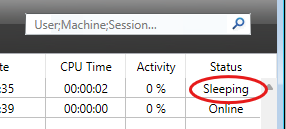
This status frees server resources while preserving the session context.
When the remote machine wakes up, the application automatically reconnects and restores the existing session.
A sleeping client session is automatically dropped after 48 hours of inactivity.
You can modify this timeout using the SET DATABASE PARAMETER command with the Remote connection sleep timeout selector.
Management of unreachable peer
When the QUIC network layer is used, client/server sessions benefit from an automatic reconnection feature in case of unexpected disconnections. Unexpected disconnections include for example:
- LAN cable unplug/plug,
- Handover with a mobile connection,
- Switch reboot,
- Small network error.
This feature supports both server-side and client-side management in the event of a lost connection with a peer, and includes configurable timeouts and real-time information.
Unreachable event
The QUIC network layer automatically emits an "Unreachable" event to 4D Server when a remote 4D unexpectedly stops responding; conversely, it automatically emits an "Unreachable" event to a remote 4D when the 4D Server unexpectedly stops responding. When the "Unreachable" event is received on either side, it is immediately reflected in the interface and in the machine's Session object.
Remote stops responding
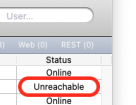
When a remote 4D unexpectedly stops responding, on the Server administration window, the remote session status is set to Unreachable.
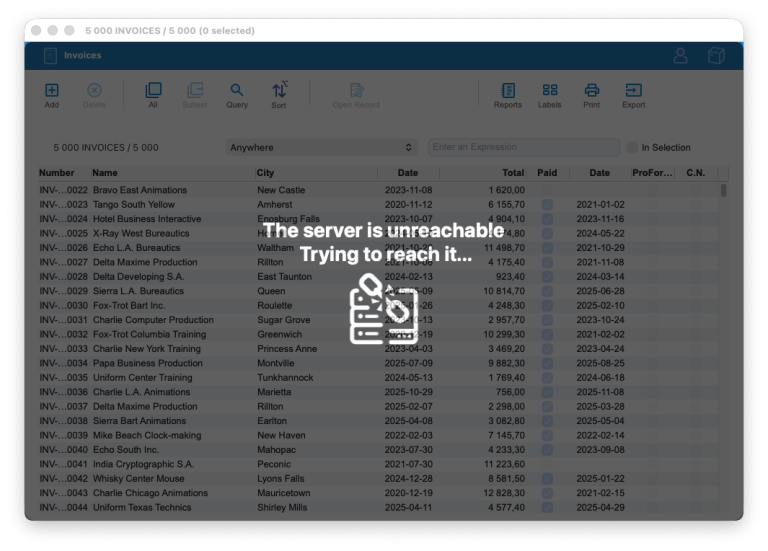
Server stops responding
If 4D Server unexpectedly stops responding, a reconnection dialog box is displayed on the remote machine:
Session object updated
When the "Unreachable" event is received on either side, an info.unreachableSince property is created in the session on the machine receiving the event (on the server, it is readable through the Process activity.sessions property), and it starts counting seconds since the last communication. You can use this property to implement your own disconnection interface.
Restoring or closing connection
The QUIC session timeout is 900 seconds (15 minutes) by default, it can be modified using the QUIC session timeout selector of the SET DATABASE PARAMETER command.
The QUIC session timeout is automatically used to monitor disconnections:
- If the connection is restored before the QUIC session timeout is reached, the
info.unreachableSinceproperty is automatically removed from the session object. - If the connection is not restored before the QUIC session timeout is reached, the session is closed.
- In case of a remote session closed from the server, a warning entry is written in the diagnostic log.
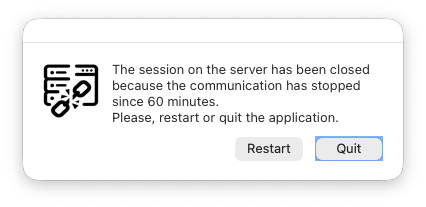
- In case of a server session closed from a remote machine, a warning dialog box is displayed so that the user can restart the remote application or quit: