AI page
La página IA le permite añadir, eliminar o consultar la lista de todos sus proveedores de IA y de los alias de sus modelos, tanto si proceden de fuentes locales como de servicios en línea. Los proveedores y los alias de modelos se pueden utilizar en el código de toda la aplicación 4D, especialmente con el componente 4D-AIKit mediante la función de alias de modelos.
Gestión de proveedores
4D soporta varios proveedores de IA con una API tipo OpenAI, cada uno ofreciendo modelos y funcionalidades únicas adaptadas a las necesidades de las bases de datos.
Por defecto, la lista de proveedores está vacía.
Añadir un proveedor
Para añadir un proveedor de IA:
- Haga clic en el botón + situado en la parte inferior de la lista de proveedores.
- Introduzca los campos de configuración del proveedor necesarios, incluidas las credenciales.
- (opcional) Haga clic en el botón Probar la conexión para verificar que la URL y las credenciales proporcionadas sean válidas.
Si la conexión se realiza correctamente, a la derecha del botón aparece el número de modelos disponibles:

Si la prueba de conexión falla, se mostrará un mensaje de error (por ejemplo, "Request failed: Not found" o "Request failed: Unauthorized").
- Haga clic en OK para guardar el nuevo proveedor o Cancelar para revertir todas las modificaciones.
Editar un proveedor
Para editar o eliminar un proveedor:
- Seleccione un proveedor registrado en la lista.
- Edite la información del proveedor o para eliminar un proveedor, haga clic en el botón - en la parte inferior de la lista de proveedores.
- Haga clic en OK para guardar las modificaciones, o Cancelar para revertir todas las modificaciones.
Propiedades del proveedor
Cuando selecciona un proveedor en la lista de proveedores, hay varias propiedades disponibles. Los nombres de propiedades en negrita son obligatorios para crear un Proveedor.
Nombre
Nombre local utilizado para identificar al proveedor en su código, por ejemplo "claude". El nombre debe respetar las reglas relativas a los nombres de propiedades, ya que se utilizará en el código de la aplicación para hacer referencia al proveedor.
URL de base
Endpoint de la API del proveedor, por ejemplo https://api.openai.com/v1 o http://localhost:11434/v1.
El combo box muestra una lista de los principales proveedores; puede seleccionar un valor para acceder al punto final del proveedor:

Llave API
(opcional) Llave API para el proveedor. Para obtener instrucciones sobre cómo generar una llave API, consulte la documentación oficial de su proveedor de IA. Algunos proveedores de IA también pueden exigir credenciales específicas adicionales.
Organization
(opcional, específico de OpenAI) ID de la organización utilizado por la API de OpenAI.
Project
(opcional, específico de OpenAI) ID del proyecto. Cada llave de la API OpenAI está vinculada a un proyecto.
AIProviders.json
La configuración del proveedor se almacena en un archivo JSON denominado AIProviders.json, ubicado junto al archivo settings.4DSettings activo dentro de la carpeta del proyecto, dependiendo de su configuración de despliegue.
El archivo AIProviders.json contiene sus claves API de proveedores. Si su proyecto está almacenado en una plataforma de gestión de versión como GitHub o GitLab, asegúrese de que el archivo AIProviders.json esté registrado en el archivo .gitignore, de lo contrario sus llaves podrían ser expuestas públicamente.
Despliegue con una llave API
Al configurar un proveedor de AI, debe proporcionar su propia clave API. Requiere un registro externo para obtener claves/credenciales API de los proveedores de IA.
Usando el cuadro de diálogo de Propiedades, el desarrollador 4D puede definir un nombre de proveedor personalizado (por ejemplo "open-ai-v1") y utilizar este nombre personalizado en el código. También pueden probarlo utilizando su clave API.
Cuando la aplicación 4D se implementa con la opción Propiedades de usuario activadas, el administrador puede configurar los ajustes de usuario utilizando el mismo nombre de proveedor de IA ("open-ai-v1") y personalizar la llave de la API para utilizar la llave del cliente. Gracias a las reglas de prioridad de las propiedades usuario, los parámetros definidos por el cliente anularán automáticamente la configuración del desarrollador.
Cuando se utiliza 4D en modo cliente/servidor, se recomienda encarecidamente ejecutar el código relacionado con la IA del lado del servidor para proteger las llaves y credenciales de la API de la exposición a las máquinas cliente.
Alias de modelos
La página Alias de modelos le permite listar modelos de proveedores registrados que desea utilizar en su código y nombrarlos con alias. Gracias a los alias de modelos, evita tener que codificar los nombres de los modelos de forma estática, puede cambiar de modelo sin modificar el código y mantiene la coherencia entre los distintos entornos.
Cuando se utiliza un alias de modelo:
- El proveedor se resuelve automáticamente (ver Model resolution en la documentación de 4D-AIKit).
- Se aplica el ID del modelo.
- Se utilizan todas las credenciales y puntos finales.
Añadir un alias de modelo
Para poder añadir un alias de modelo, debe haber introducido al menos un proveedor válido en la pestaña Proveedores.
Para añadir un alias de modelo:
- Haga clic en el botón + en la parte inferior de la lista de alias de modelos.
- En la columna Nombre, introduzca el nombre del alias.
- Haga clic en la línea correspondiente en la columna Proveedor para mostrar la lista de proveedores disponibles (nombres de proveedor que introdujo en la página de Proveedores), y seleccione el nombre del proveedor.
- Haga clic en la línea correspondiente en la columna Modelo para mostrar la lista de modelos disponibles expuestos por el proveedor seleccionado y seleccionar el modelo.
- Haga clic en OK para guardar las modificaciones, o Cancelar para revertir todas las modificaciones.
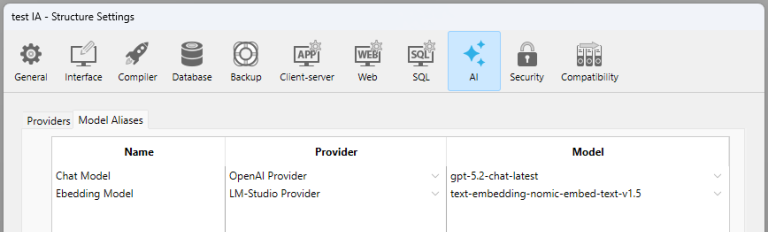
Edición de un alias de modelo
Para editar o eliminar un alias:
- Seleccione un alias de modelo en la lista.
- Para editar la información de un alias O para eliminar un alias, haga clic en el botón - situado al final de la lista.
- Haga clic en OK para guardar las modificaciones, o Cancelar para revertir todas las modificaciones.
Utilizar un alias de modelo
Puede utilizar directamente el nombre del alias del modelo siempre que sea necesario un nombre del modelo (siempre y cuando se admitan los alias del modelo).
Por ejemplo, en 4D-AIKit, puede hacer referencia a un modelo con la sintaxis: {model:"ModelName"}, donde ModelName es un modelo válido definido en la pestaña Alias de modelos:
var $client:=cs.AIKit.OpenAI.new()
var $result := $client.chat.completions.create($messages; \
    {model: "Chat Model"})
Ver también
"Alias de proveedores y de modelos" en la documentación de AIKit 4D.