Glisser-déposer
Vue d’ensemble
4D intègre une fonctionnalité de glisser-déposer entre objets de vos formulaires et applications. Vous pouvez faire glisser un objet et le déposer sur un autre, dans la même fenêtre ou dans une autre fenêtre. En d'autres termes, le glisser-déposer peut s'effectuer au sein d'un même process ou d'un process à un autre.
Vous pouvez également effectuer des glisser-déposer d'objets entre les formulaires 4D et d'autres applications, et inversement. Par exemple, il est possible de glisser-déposer un fichier image au format .png dans un champ image 4D. Il est également possible de sélectionner du texte dans un logiciel de traitement de texte et de le déposer dans une variable de texte 4D ou une list box.
Enfin, il est possible de déposer des objets directement dans l'application sans qu'un formulaire soit nécessairement affiché au premier plan. La méthode base On Drop peut être utilisée pour gérer l'action de glisser-déposer dans ce cas. Cela signifie, par exemple, que vous pouvez ouvrir un document 4D Write Pro en le glissant-déposant sur l'icône de l'application 4D.
4D fournit deux modes de glisser-déposer :
- un mode personnalisé, dans lequel l'ensemble de l'opération de glisser-déposer est gérée par le développeur. Ce mode vous permet de mettre en place des interfaces basées sur le glisser-déposer, y compris des interfaces qui ne déplacent pas nécessairement des données mais qui peuvent effectuer tout type d'action, telle que l'ouverture de fichiers ou le lancement d'un calcul.
- un mode automatique, dans lequel une opération de glisser-déposer permet de copier ou de déplacer automatiquement des données d'un objet vers un autre. Ce mode est disponible pour les objets textuels et (en partie) pour les images, et peut être activé simplement en sélectionnant une propriété.
Objets glissables et déposables
Plusieurs objets de formulaire peuvent être glissés et/ou déposés, en mode personnalisé et/ou automatique (voir ci-dessous). Les objets de formulaire nouvellement créés ne peuvent être ni glissés ni déposés (valeur "none"). C'est à vous de définir ces propriétés.
Pour glisser-déposer un objet sur un autre, vous devez définir sa propriété Glissable sur "Automatique" ou "Personnalisé". Lors d'une opération de glisser-déposer, l'objet que vous faites glisser est l'objet source.
Pour qu'un objet puisse servir de destination à une opération de glisser-déposer, vous devez définir sa propriété Déposable sur "Automatique" ou "Personnalisé". Lors d'une opération de glisser-déposer, l'objet qui reçoit les données est l'objet de destination.
Le tableau suivant répertorie les propriétés disponibles pour les objets glissables et/ou déposables :
| Objet de formulaire | Glissable "Personnalisé" | Déposable "Personnalisé" | Glissable "Auto" | Déposable "Auto" |
|---|---|---|---|---|
| Zones 4D Write Pro | x | x | x | x |
| Combo Box | x | x | x | |
| Zone de saisie | x | x | x | x |
| Hierarchical List | x | x | ||
| List Box | x | x | ||
| Zone de plugin | x | x | ||
| Bouton | x | |||
| Bouton Image | x |
Les éléments d'une liste hiérarchique ou les lignes d'une list box peuvent être déplacés par glisser-déposer. À l'inverse, vous pouvez glisser-déposer un objet sur un élément d'une liste hiérarchique ou sur une ligne d'une list box. Cependant, vous ne pouvez pas glisser-déposer des objets depuis la zone de détail d'un formulaire de sortie. Vous pouvez également gérer les opérations de glisser-déposer dans l'application, en dehors de tout formulaire, à l'aide de la méthode base On Drop.
- Par défaut, dans le cas des champs d'image et des variables, l'image et sa référence sont toutes deux déplacées. Si vous souhaitez uniquement faire glisser la référence, maintenez enfoncée la touche Alt (Windows) ou Option (macOS) avant de commencer.
- Lorsque les propriétés Glissable "Personnalisé" et "Lignes déplaçables" sont toutes deux définies pour un objet "list box tableau", la propriété "Lignes déplaçables" prévaut lors du déplacement d'une ligne. Dans ce cas, il n'est pas possible de faire glisser l'élément.
- Un objet pouvant être à la fois glissé et déposé peut également être déposé sur lui-même, à moins que vous ne rejetiez cette opération.
Glisser-déposer personnalisé
La mise en œuvre d'une interface de glisser-déposer personnalisée implique de combiner des propriétés, des événements et les commandes du thème Conteneur de données. Le schéma suivant illustre les points clés d'une séquence de glisser-déposer personnalisé :

Votre implémentation sera basée sur le scénario suivant :
- Dans l'événement
On Begin Drag Overde l'objet source (avec la propriété Glissable "Personnalisé"), placez les données appropriées dans le presse-papiers à l’aide deAPPEND DATA TO PASTEBOARD,SET FILE TO PASTEBOARDou d’autres commandes du thème Conteneur de données. Vous pouvez également définir une icône de curseur spécifique à l'aide de la commandeSET DRAG ICON. - Dans l'événement
On Drag Overde l'objet de destination (avec la propriété Déposable "Personnalisé"), récupérez les types de données ou les signatures de données présents dans le presse-papiers à l’aide deGET PASTEBOARD DATA TYPEouGET PASTEBOARD DATAet vérifiez s’ils sont compatibles avec l’objet de destination. La commandeDrop positionretourne le numéro de l'élément ou la position de l'élément cible ou de liste, si l'objet destination est une liste hiérarchique, un texte ou une liste déroulante, ainsi que le numéro de colonne si l'objet est une list box. - La méthode objet de l'objet ou de l'élément de destination doit renvoyer 0 ou -1 pour accepter ou refuser l'action :
- Si c'est compatible, retournez 0 pour accepter le déposer et exécuter l'événement
On Droplorsque le bouton de la souris est relâché. - Sinon, retournez -1 pour rejeter le déposer.
4D gère automatiquement l'aspect graphique de cette interaction en affichant un curseur selon que le glisser-déposer est accepté ou rejeté.
- Si c'est compatible, retournez 0 pour accepter le déposer et exécuter l'événement
- Dans l'événement
On Dropde l'objet de destination (avec la propriété Déposable "Personnalisé"), exécutez n'importe quelle action en réponse au déposer. Si l'opération de glisser-déposer vise à copier les données déplacées, il suffit d'affecter ces données à l'objet de destination. Si le glisser-déposer n'a pas pour but de déplacer des données, mais constitue plutôt une métaphore de l'interface utilisateur pour une opération particulière, vous pouvez effectuer l'action de votre choix, par exemple récupérer les chemins d'accès aux fichiers à l'aide de la commandeGet file from pasteboard.
Notez que l'événement On Begin Drag Over est généré dans le contexte de l'objet source du glisser, tandis que les événements On Drag Over et On Drop ne sont envoyés qu'à l'objet de destination.
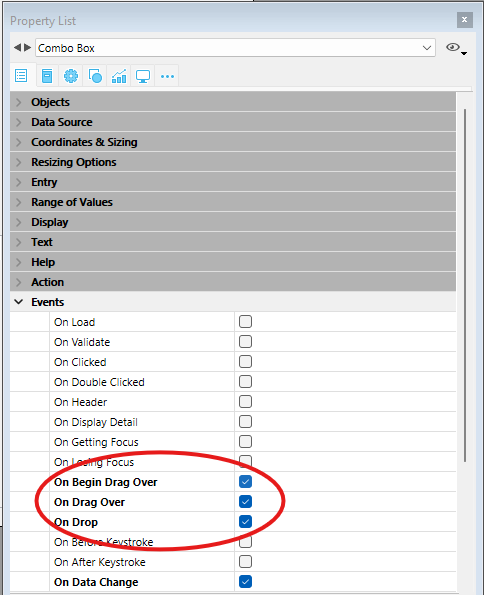
Pour que l'application puisse traiter ces événements, ceux-ci doivent être sélectionnés de manière appropriée dans la liste des propriétés, tant pour l'objet source que pour l'objet de destination :
Glisser-déposer automatique
Le glisser-déposer automatique est le déplacement ou la copie d'une sélection de texte ou d'une image d'une zone à l'autre par un simple clic. Il peut être utilisé au sein d'une même zone 4D, entre deux zones 4D, ou entre 4D et une autre application.
Dans le cas d'un glisser-déposer automatique entre deux zones 4D, les données sont déplacées ; en d'autres termes, elles sont supprimées de la zone source. Si vous souhaitez copier les données, maintenez la touche Ctrl (Windows) ou Option (macOS) enfoncée pendant l'opération (sous macOS, vous devez appuyer sur la touche Option après avoir commencé à faire glisser le ou les élément(s)).
Les propriétés Glisser automatique et Déposer automatique peuvent être configurées séparément pour chaque objet de formulaire.
- Glissable : Automatique : Lorsque cette option est sélectionnée, le glisser automatique est activé pour l'objet. Dans ce mode, l'événement formulaire
On Begin Dragn'est PAS généré. Si vous souhaitez "forcer" l'utilisation du glisser-déposer personnalisé alors que le glisser-déposer automatique est activé, maintenez enfoncée la touche Alt (Windows) ou Option (macOS) pendant l'action (sous macOS, vous devez appuyer sur la touche Option avant de commencer le glisser). Cette option n'est pas disponible pour les images. - Déposable : Automatique : Dans ce mode, 4D gère automatiquement — dans la mesure du possible — l'insertion des données glissées de type texte ou image qui sont déposées sur l'objet (les données sont collées dans l'objet). Les événements formulaire
On Drag OveretOn Dropne sont pas générés dans ce cas. Par contre, les événementsOn After Edit(pendant un déposer) etOn Data Change(quand l'objet perd le focus) sont générés.
Dans le cas de données autres que du texte ou des images (un autre objet 4D, un fichier, etc.) ou de données complexes déposées, l'application se réfère à la valeur de l'option "Déposable" : si elle n'est pas sur "Aucun", les événements formulaire On Drag Over et On Drop sont générés ; sinon, le déposer est refusée.
Exemples
List box tableau vers zone de saisie de texte
Dans cet exemple simple, nous souhaitons remplir une zone de texte de saisie avec des données glissées depuis une list box de type tableau :
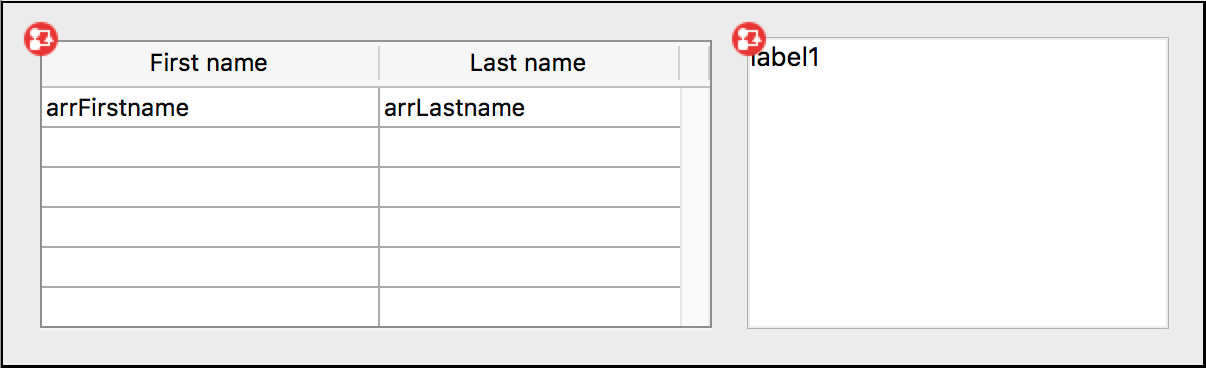
La méthode objet de la list box :
  //Object Method: ListBox
 If(Form event code=On Begin Drag Over)
    SET TEXT TO PASTEBOARD(arrFirstname{arrFirstname}+" "+arrLastname{arrFirstname})
 End if
La méthode de l'objet zone de texte contient :
  // Object Method: label1
If(Form event code=On Drop) //Nécessite que l'action Déposable soit activée dans la Liste des propriétés
    ARRAY TEXT($signatures_at;0)
    ARRAY TEXT($nativeTypes_at;0)
    ARRAY TEXT($formatNames_at;0)
    GET PASTEBOARD DATA TYPE($signatures_at;$nativeTypes_at;$formatNames_at)
    If(Find in array($signatures_at;"com.4d.private.text.native")#-1) // Il y a du texte 4D dans le conteneur de données
       OBJECT Get pointer(Object current)->:=Get text from pasteboard
    End if
 End if
List box de type sélection vers zone de saisie de texte
La combinaison de fonctionnalités de glisser-déposer personnalisées et automatiques permet de créer des interfaces à la fois simples et performantes. Dans cet exemple, nous souhaitons remplir un champ de saisie avec des données glissées depuis une list box :

- List box : propriété Glissable "Personnalisé" et événement "On Begin Drag Over"
- Zone de saisie : propriété Déposable "Automatique".
  //méthode objet list box
 Case of
    :(Form event code=On Begin Drag Over)
       LOAD RECORD([Clients])
       $label:=[Clients]Name+Char(CR ASCII code)+[Clients]Contact+Char(CR ASCII code)+\
       [Clients]Address1+Char(CR ASCII code)+[Clients]City+", "+[Clients]State+" "+[Clients]ZipCode)
       SET TEXT TO PASTEBOARD($label)
 End case
Le déplacement et la mise en forme des données s'effectuent par glisser-déposer :

Chemin d'accès de fichier vers zone de texte
Vous souhaitez que l'utilisateur glisse un fichier depuis le disque sur une variable saisissable (de type objet) afin qu'une description json du fichier s'affiche.
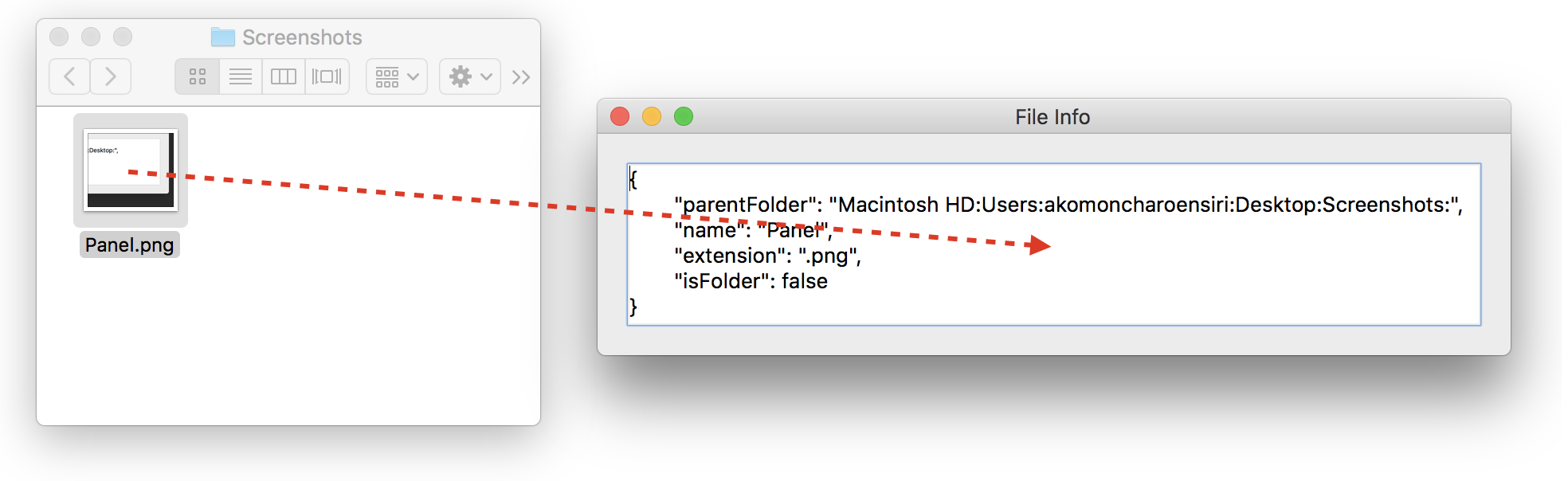
Dans la méthode objet de la variable, vous écrivez simplement :
 #DECLARE -> $result : Integer
 Case of

    :(Form event code=On Drag Over)
  // Accepter l'évenement On Drop uniquement si le conteneur de données contient des fichiers, sinon le rejeter.
       If(Get file from pasteboard(1)="") //pas de fichier dans le conteneur
          $result:=-1 //rejeter le déposer
       End if

    :(Form event code=On Drop) //Nécessite que la propriété Déposable soit sélectionnée dans la liste des propriétés
       var $path_t : Text
       var path_o : Object
       $path_t:=Get file from pasteboard(1)
       If($path_t#"")
          path_o:=Path to object($path_t)
       End if

 End case
Chemin d'accès vers list box
Vous souhaitez que l'utilisateur sélectionne des fichiers sur le disque, puis qu'il fasse un glisser-déposer dans une list box afin que celle-ci affiche les chemins d'accès à ces fichiers.
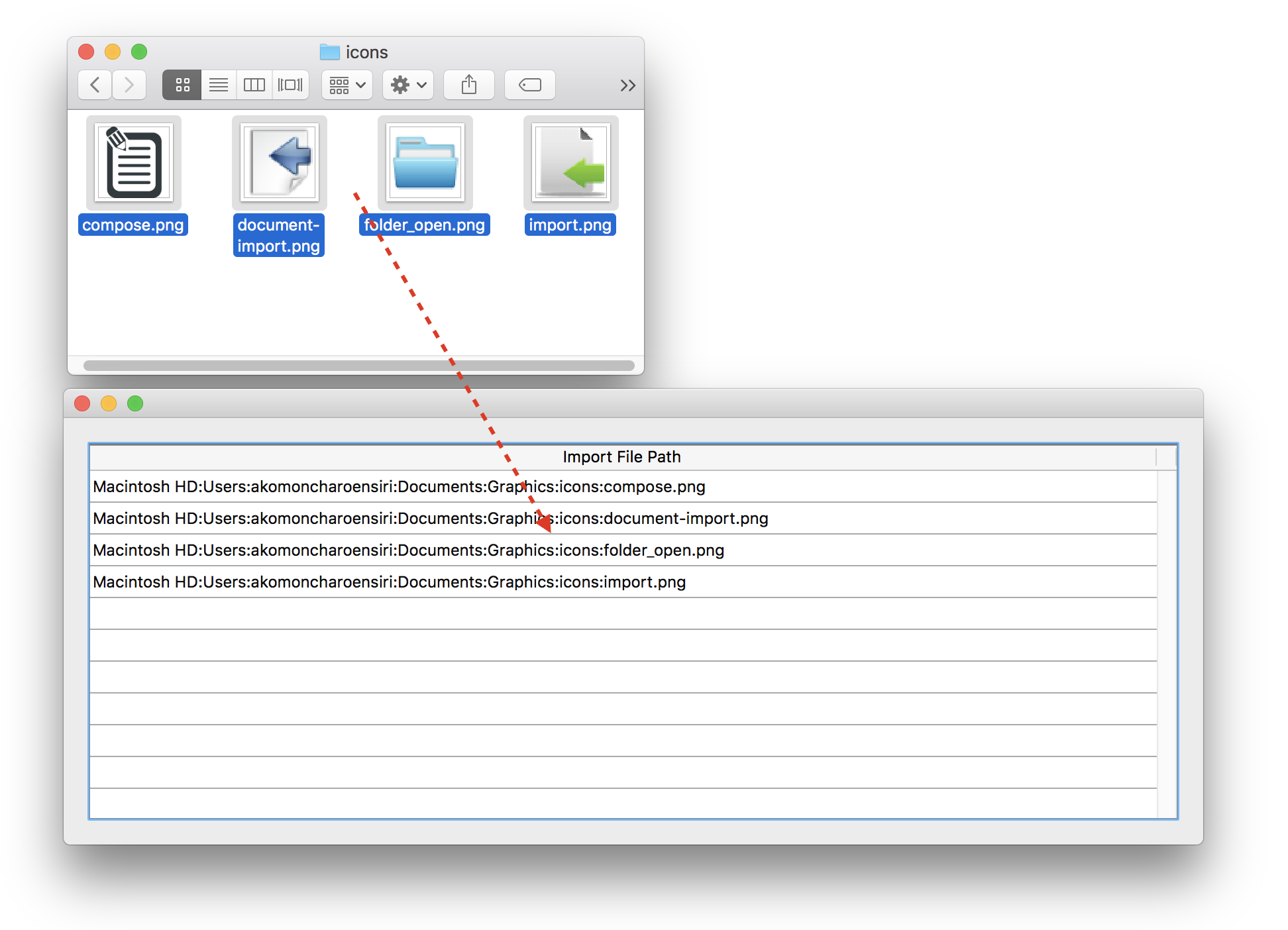
Dans la méthode objet de la list box, vous pouvez écrire :
 #DECLARE -> $result : Integer
 Case of

    :(Form event code=On Drag Over)
  // Accepter l'événement On Drop seulement si le conteneur de données contient des fichiers, le rejeter sinon.
       If(Get file from pasteboard(1)#"") //au moins un fichier est déposé
          $result:=0 //accepter le déposer
       Else //aucun fichier dans le déposer
          $result:=-1 //rejeter le déposer
       End if

    :(Form event code=On Drop) //Nécessite que la propriété Déposable soit sélectionnée dans la liste des propriétés
       ARRAY TEXT(importedPath_at;0)
       var $path_t :Text
       var $index_l:=1
       Repeat
          $path_t:=Get file from pasteboard($index_l)
          If($path_t#"")
             APPEND TO ARRAY(importedPath_at;$path_t)
          End if
          $index_l:=$index_l+1
       Until($path_t="")
 End case
Commandes du presse-papiers
Les commandes du thème "Conteneur de données" peuvent être utilisées aussi bien pour gérer les actions de copier/coller (gestion du presse-papier) que pour les actions de glisser-déposer entre applications.
4D utilise deux conteneurs de données : l'un pour les données copiées (ou coupées), qui correspond au presse-papiers, et l'autre pour les données glissées-déposées. Ces deux conteneurs de données sont gérés à l'aide des mêmes commandes. Vous accédez à l'un ou à l'autre selon le contexte :
- L'accès au conteneur de glisser-déposer n'est possible que dans le cadre des événements formulaire
On Begin Drag Over,On Drag overouOn Drop, ainsi que dans la méthode base On Drop. En dehors de ces contextes, le conteneur de glisser-déposer n'est pas disponible. - Le conteneur de copier/coller est accessible dans tous les autres cas. Contrairement au presse-papiers de glisser-déposer, il conserve les données qui y sont placées pendant toute la durée de la session, à condition qu'elles ne soient pas effacées ou réutilisées.
Types de données
Lors d'opérations de glisser-déposer, différents types de données peuvent être placés dans le conteneur ou extraits de celui-ci. Il existe plusieurs façons d'accéder à un type de données :
- Via sa signature 4D : la signature 4D est une chaîne de caractères indiquant un type de données référencé par l'application 4D. L'utilisation de signatures 4D facilite le développement d'applications multiplateformes, car ces signatures sont identiques sous macOS et Windows. Vous trouverez ci-dessous la liste des signatures 4D.
- Via un UTI (Uniform Type Identifier, macOS uniquement) : la norme UTI, définie par Apple, associe une chaîne de caractères à chaque type d'objet natif. Par exemple, les images GIF ont le type UTI « com.apple.gif ». Les types UTI sont publiés dans la documentation d'Apple ainsi que par les éditeurs concernés.
- Via son numéro ou son nom de format (Windows uniquement) : sous Windows, chaque type de données natives est référencé par son numéro ("3", "12", etc.) et par un nom ("Rich Text Edit"). Par défaut, Microsoft spécifie plusieurs types natifs appelés formats de données standard. En outre, les éditeurs tiers peuvent "enregistrer" des noms de format dans le système, qui leur attribue un numéro en retour. Pour plus d'informations à ce sujet et sur les types natifs, veuillez consulter la documentation pour les développeurs de Microsoft (plus particulièrement à l'adresse http://msdn2.microsoft.com/en-us/library/ms649013.aspx).
Dans les commandes 4D, les numéros au format Windows sont traités comme du texte.
Toutes les commandes du thème "Conteneur de données" peuvent fonctionner avec chacun de ces types de données. Vous pouvez déterminer quels types de données sont présents dans le conteneur pour chacun de ces formats à l'aide de la commande GET PASTEBOARD DATA TYPE.
Les types à 4 caractères (TEXT, PICT ou types personnalisés) sont pris en charge pour assurer la compatibilité avec les versions antérieures de 4D.
Signatures 4D
Voici la liste des signatures 4D standard ainsi que leur description :
| Signature | Description |
|---|---|
| "com.4d.private.text.native" | Texte dans le jeu de caractères natif |
| "com.4d.private.text.utf16" | Texte dans le jeu de caractères Unicode |
| "com.4d.private.text.rtf" | Texte enrichi |
| "com.4d.private.picture.pict" | Format d'image PICT |
| "com.4d.private.picture.png" | Format d'image PNG |
| "com.4d.private.picture.gif" | Format d'image GIF |
| "com.4d.private.picture.jfif" | Format d'image JPEG |
| "com.4d.private.picture.emf" | Format d'image EMF |
| "com.4d.private.picture.bitmap" | Format d'image BITMAP |
| "com.4d.private.picture.tiff" | Format d'image TIFF |
| "com.4d.private.picture.pdf" | Document PDF |
| "com.4d.private.file.url" | Chemin de fichier |