Rechercher et Remplacer
4D propose plusieurs fonctions de recherche et de remplacement d'éléments dans l'ensemble de l'environnement de développement.
- Vous pouvez rechercher une chaîne de caractères ou un type d'objet (variable, commentaire, expression, etc.) parmi une partie ou la totalité du développement sur la base de critères paramétrables ("commence par”, “contient”...). Par exemple, vous pouvez rechercher toutes les variables contenant la chaîne "MaVar", uniquement dans les méthodes dont le nom commence par "HR_".
- Les résultats sont affichés dans une fenêtre de résultat, à partir de laquelle il est possible d'effectuer des remplacements dans le contenu. Vous pouvez aussi exporter ces résultats dans un fichier texte qui peut être importé dans une feuille de calcul.
- Vous pouvez détecter les variables et les méthodes qui ne sont pas utilisées dans votre code et les supprimer pour libérer de la mémoire.
- Vous pouvez renommer une méthode projet ou une variable dans tout l'environnement de développement en une seule opération.
Vous disposez également de fonctions de recherche parmi les méthodes de votre base, accessibles via le menu contextuel de la page Méthodes de l'Explorateur : Chercher les appelants (également disponible dans l'Éditeur de code et Chercher les dépendances. Les deux fonctions affichent les éléments trouvés dans une fenêtre de résultat.
Emplacements de recherche
Une recherche dans l'environnement de développement effectue par défaut une recherche parmi les objets suivants :
- Noms des méthodes projet et des classes
- Contenu de toutes les méthodes et classes
- Noms des tables, champs et formulaires
- Contenu des formulaires :
- noms et titres des objets
- noms des infobulles, images, variables, feuilles de style,
- chaînes de formatage de caractères
- expressions
- Menus (noms et éléments) et commandes associées aux éléments de menu
- Enumérations (noms et éléments)
- Infobulles (noms et contenu)
- Formats / filtres (noms et contenu)
- Commentaires dans l'Explorateur et dans le code
Chercher dans le développement
Lancer une recherche
Vous définissez vos critères de recherche dans la fenêtre "Chercher dans le développement" :
- Cliquez sur le bouton de recherche (
 ) dans la barre d'outils 4D.
OU
Sélectionnez la commande Chercher dans le développement... dans le menu Edition.
) dans la barre d'outils 4D.
OU
Sélectionnez la commande Chercher dans le développement... dans le menu Edition.
La fenêtre de recherche dans le développement apparaît :

Les zones de la "Recherche dans le développement" varient dynamiquement en fonction des sélections effectuées dans les menus. Vous pouvez déployer cette fenêtre pour que toutes les options soient visibles :
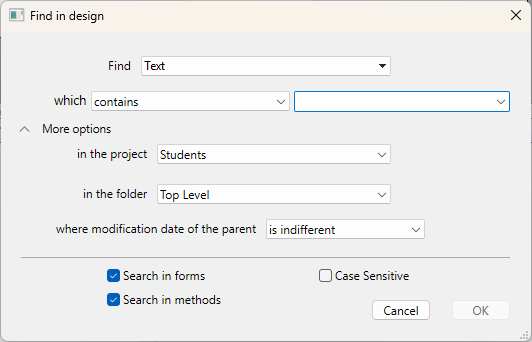
-
Construisez votre recherche en utilisant les différents menus et zones de saisie de la boîte de dialogue et, si nécessaire, saisissez la chaîne de caractères à rechercher. Ces éléments sont décrits dans les sections suivantes.
-
Définissez les options de recherche (si nécessaire).
-
Cliquez sur OK ou appuyez sur la touche Entrée. Lorsque la recherche est terminée, la fenêtre de résultat s'affiche, répertoriant les éléments trouvés.
Vous pouvez interrompre une recherche en cours en cliquant sur le bouton x (qui apparaît pour les recherches de longue durée uniquement) ; cela ne ferme pas la fenêtre et ne supprime pas les résultats trouvés.
Une fois la recherche effectuée, la valeur saisie dans la zone de recherche est sauvegardée en mémoire. Cette valeur, ainsi que toutes les autres valeurs saisies au cours de la même session, sont sélectionnables dans la liste déroulante.
Chercher
Vous spécifiez le type d'élément à rechercher à l'aide du menu Chercher. Les choix suivants sont possibles :
- Le texte : Dans ce cas, 4D recherche une chaîne de caractères dans tout l'environnement de developpement. La recherche est effectuée en mode texte brut, sans tenir compte du contexte. Par exemple, vous pouvez rechercher le texte "ALERT("Erreur numéro :"+" ou "bouton27". Dans ce mode, il n’est pas possible d’utiliser de caractère joker. Le "@" est considéré comme un caractère standard.
- Le commentaire : Une recherche de ce type équivaut à la précédente mais est restreinte au contenu des commentaires dans le code (lignes débutant par //) et dans la fenêtre de l'Explorateur. Par exemple, vous pouvez rechercher tous les commentaires contenant la chaîne "A vérifier".
Le résultat final de ces deux types de recherches dépend étroitement du paramétrage du menu de mode de recherche (qui).
- L’expression de langage : Permet de rechercher toute expression 4D valide ; la recherche est effectuée en mode "contient". La notion de validité est importante car 4D doit pouvoir évaluer l’expression pour la rechercher. Par exemple, une recherche sur l’expression "[clients" n’aboutira pas (expression invalide) alors que "[clients]" est correct. Cette option est particulièrement adaptée aux recherches des affectations et des comparaisons de valeurs. Par exemple :
- Recherche de "myvar:=" (affectation)
- Recherche de "myvar=" (comparaison)
- Un élément du langage : Permet de rechercher précisément un élément de langage via son nom. 4D distingue les éléments suivants :
- N'importe quel élément du langage : Tout élément de la liste ci-dessous.
- Méthode projet ou classe : Nom d'une méthode ou d'une classe projet, par exemple "M_Add" ou "EmployeeEntity".
- Formulaire : Nom de formulaire, par exemple "Saisie". La commande effectue une recherche parmi les formulaires projet et les formulaires table.
- Champ ou Table : Nom d'une table ou d'un champ, par exemple "Clients".
- Variable : Tout nom de variable, par exemple "$myvar".
constante 4D : Toute constante, telle que "Is Picture".
Chaîne entre guillemets : Constante de texte littérale, c'est-à-dire toute valeur entre guillemets dans l'éditeur de code ou insérée dans les zones de texte de l'éditeur de formulaires (texte statique ou zones de groupe). Par exemple, la recherche de "Martin" donnera des résultats si votre code contient la ligne :
ds.Customer.query("name = :1" ; "Martin") - Commande 4D : Toute commande 4D, par exemple "Alert".
- Commande de plug-in : Commande de plug-in installée dans l'application.
- **Propriété ** : Nom d'une propriété d'objet (y compris les noms d'attributs ORDA). Par exemple, "lastname" permet de trouver "$o.lastname" et "ds.Employee.lastname".
- N'importe quel objet : Cette option permet d'effectuer une recherche parmi tous les éléments de l'environnement de développement. Dans ce cas, seul le menu de date de modification est disponible. Utilisez cette option, par exemple, pour rechercher "tout ce qui a été modifié aujourd'hui".
Mode de recherche
Le menu de mode de recherche (c'est-à-dire "qui", "qui est" ou "dont le nom") spécifie comment rechercher la valeur saisie. Le contenu de ce menu varie en fonction du type d'élément à rechercher, tel que sélectionné dans la liste déroulante Chercher.
- Options de recherche pour Texte ou Commentaire :
- contient : recherche la chaîne parmi les textes de l'environnement de développement. La recherche de "var" trouvera "mavar", "variable1" ou "avarie".
- contient le mot : recherche la chaîne en tant que mot parmi les textes de l'environnement de développement. La recherche de "var" ne trouvera que les occurrences exactes de "var". Elle ne trouvera pas "mavar", en revanche, elle trouvera "var:=10" ou "ID+var" car les symboles : ou + sont des séparateurs de mots.
- commence par / se termine par : recherche la chaîne au début ou à la fin du mot (recherche de texte) ou au début ou à la fin de la ligne de commentaire (recherche de commentaire). En mode "Texte se termine par", la recherche de "var" trouvera "mavar".
- Options de recherche pour élément du langage : le menu propose des options standard (est exactement, contient, commence par, se termine par). A noter que vous pouvez utiliser le joker de recherche (@) avec l’option "est exactement" (retourne tous les objets du type défini).
Chercher dans les composants
Lorsque votre projet courant fait référence à des composants modifiables, vous pouvez désigner un ou tous vos composants comme cible(s) de la recherche. Par défaut, une recherche est exécutée dans l'hôte uniquement. Pour modifier la cible d'une recherche, déployez le menu dans le projet :
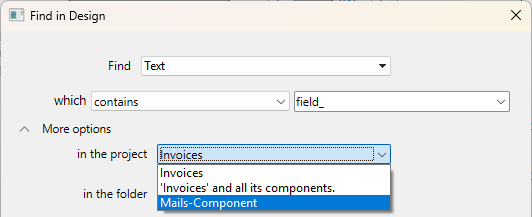
Vous pouvez sélectionner comme cible :
- le projet hôte (option par défaut, en haut de la liste) : la recherche ne sera exécutée que dans le code et les formulaires du projet hôte, les composants sont exclus.
- le projet hôte et tous ses composants : la recherche sera exécutée dans le projet hôte et dans tous ses composants chargés.
- un composant spécifique, parmi la liste de tous les composants pouvant faire l'objet d'une recherche : la recherche sera limitée à ce composant uniquement, l'hôte et les autres composants sont exclus.
Si aucun composant dans lequel la recherche est possible n'est trouvé, aucun menu n'est disponible.
Le menu dans le dossier (voir ci-dessous) est mis à jour lorsque vous sélectionnez un projet, car la disponibilité des dossiers dépend de la ou des cible(s) de recherche sélectionnée(s). Le menu est caché lorsque vous sélectionnez l'option "projet hôte et tous ses composants".
Folder
Le menu dans le dossier limite la recherche à un dossier spécifique du projet. Par défaut (option "Niveau supérieur"), la recherche s'effectue dans tous les dossiers.
Les dossiers sont définis dans la page Démarrage de l'Explorateur.
Date de modification du parent
Ce menu permet de restreindre la recherche en fonction de la date de création/de modification de l'élément parent (c'est-à-dire, par exemple, de la méthode contenant la chaîne recherchée). Ce menu contient des critères de date standard (est égale à, est antérieure à, est postérieure à, est différente de) ainsi que plusieurs options vous permettant de désigner en un clic une période de recherche prédéfinie :
- est aujourd'hui : Période commençant à minuit (00:00 h) du jour en cours.
- est depuis hier : Période comprenant le jour en cours et le jour précédent.
- est cette semaine : Période commençant le lundi de la semaine en cours.
- est ce mois-ci : Période commençant le 1er jour du mois en cours.
Options de recherche
Vous pouvez sélectionner diverses options permettant d’accélérer vos recherches :
- Chercher dans les formulaires : Lorsque cette option est désélectionnée, la recherche est effectuée dans l'ensemble du projet, sauf dans les formulaires.
- Chercher dans les méthodes : Lorsque cette option est désélectionnée, la recherche est effectuée dans l'ensemble du projet, sauf dans les méthodes.
- Sensible à la casse : Lorsque cette option est sélectionnée, la recherche tient compte de la casse des caractères tels qu'ils ont été saisis dans la zone de recherche.
Fenêtre de résultat
La fenêtre de résultat liste les objets répondant aux critères définis via différents types de recherches :
- recherche standard
- recherche d'éléments inutilisés
- recherche des appelants
- recherche des dépendances
- renommage des méthodes projet et des variables
La fenêtre de résultat présente les éléments trouvés sous forme de liste hiérarchique, regroupés par type d’objet. Vous pouvez développer ou réduire tous les éléments hiérarchiques de la liste à l'aide du menu d'options (situé en bas à gauche de la fenêtre) ou du menu contextuel.
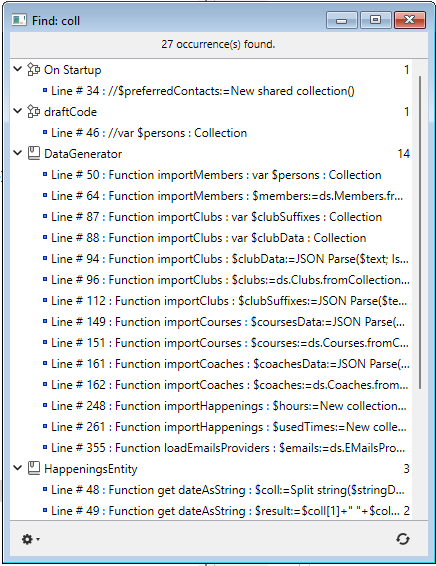
Vous pouvez double-cliquer sur une ligne de cette fenêtre pour afficher l'élément dans son éditeur, tel que l'éditeur de code. Si vous effectuez plusieurs recherches, chaque recherche ouvre sa propre fenêtre de résultats, laissant les fenêtres de résultats précédentes ouvertes.
Lorsque plusieurs occurrences ont été trouvées, la liste indique leur nombre à côté du nom de l'élément.
Vous pouvez faire apparaître une infobulle pour chaque élément afin d'obtenir des informations supplémentaires, par exemple la propriété de l'élément correspondant à la recherche ou le numéro de page du formulaire contenant l'occurrence.
Lorsqu'un élément trouvé appartient à un composant, le nom du composant est affiché entre parenthèses à droite du nom de l'élément :
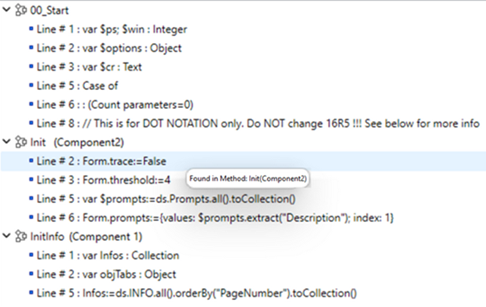
Une fois la recherche terminée, vous pouvez utiliser le bouton  pour effectuer une nouvelle recherche avec les mêmes critères et options.
Menu d'options
Le menu d'options vous permet d'effectuer diverses actions :

- Retirer de la liste : supprime le(s) élément(s) sélectionné(s) de la fenêtre de résultats. Cette fonction permet notamment de ne conserver que les éléments cibles d'un remplacement dans le contenu ou utilisés pour un glisser-déposer inter-applications.
- Retirer tous les éléments de la liste sauf la sélection : efface tout le contenu de la fenêtre de résultats sauf le(s) élément(s) sélectionné(s).
- Remplacer dans le contenu : remplace une chaîne de caractères dans le(s) élément(s) sélectionné(s).
- Sélectionner > : sélectionne un type d'élément (méthodes projet, noms d'objets, etc.) parmi tous les éléments de la fenêtre de résultats. Le sous-menu hiérarchique fournit également des commandes pour sélectionner (Tout) ou désélectionner (Rien) tous les éléments d'un coup.
- Contracter tout/Déployer tout : développe ou contracte tous les éléments hiérarchiques de la liste de résultats.
- Exporter les résultats : exporte des informations sur les critères de recherche et les éléments listés dans la fenêtre de résultats. Ce fichier texte peut ensuite être importé dans un tableur tel qu'Excel, par exemple. Pour chaque élément, les informations suivantes sont exportées sous forme de valeurs séparées par des tabulations :
- Nom du projet hôte ou du composant
- Type (méthode, classe, formObject, trigger...)
- Chemin
- Propriété (si pertinent) : désigne la propriété de l'élément qui correspond à la recherche. Par exemple, une chaîne de caractères peut se trouver dans le nom d'une variable (propriété variable) et dans le nom d'un objet (propriété nom) dans le même formulaire. Ce champ est vide lorsque l'élément correspondant est l'objet lui-même.
- Contenu (si pertinent) : fournit la partie de l'élément qui correspond à la recherche ; par exemple, la ligne de code qui contient la chaîne de caractères recherchée.
- Numéro de ligne (pour le code) ou numéro de page (pour les objets de formulaire)
Remplacer dans le contenu
La fonction de remplacement dans le contenu permet de remplacer une chaîne de caractères par une autre à l’intérieur des objets listés dans la Fenêtre de résultat. Elle est disponible dans le menu d'options de la fenêtre.
Le menu Remplacer dans le contenu est désactivé si vous travaillez dans un projet en lecture seule (par exemple dans un fichier .4dz).
Lorsque vous sélectionnez cette commande, une boîte de dialogue vous permet de saisir la chaîne de caractères qui remplacera toutes les occurrences trouvées par la recherche initiale :

Les principes du remplacement sont les suivants :
- Le remplacement est effectué parmi la totalité des éléments présents dans la liste et non sur une sélection. Cependant, il est possible de limiter l'opération de remplacement en réduisant d'abord le contenu de la liste à l'aide des commandes Retirer de la liste ou Retirer tous les éléments de la liste sauf la sélection dans le menu options ou le menu contextuel.
- Si la fenêtre de résultat comprend des éléments de composants, le remplacement sera également effectué dans le(s) composant(s).
- Seules les occurrences figurant dans la liste seront remplacées et seulement après avoir vérifié les critères de recherche initiaux pour les cas où les objets ont été modifiés entre la recherche initiale et l'opération de remplacement.
- Le remplacement est effectué dans le code, les propriétés des objets du formulaire, le contenu des messages d'aide, les filtres de saisie, les éléments de menu (texte de l'élément et appels de méthode), les énumérations, les commentaires.
- Pour chaque objet modifié, 4D vérifie s'il est déjà chargé par une autre machine ou dans une autre fenêtre. En cas de conflit, une boîte de dialogue standard apparaît, indiquant que l'objet est verrouillé. Vous pouvez fermer l'objet et réessayer ou annuler son remplacement. L'opération de remplacement se poursuivra ensuite avec les autres objets de la liste.
- Si une méthode ou un formulaire concerné(e) par un "remplacer dans le contenu" est en cours d'édition par la même application 4D, il sera modifié directement dans l'éditeur ouvert (aucun avertissement n'apparaît). Les formulaires et les méthodes ainsi modifiés ne sont pas sauvegardés automatiquement : vous devez utiliser explicitement la commande Sauvegarder ou Tout enregistrer pour valider les changements.
- Lorsqu'un remplacement a été effectué dans un élément de la liste, il apparaît en italique. Un décompte des remplacements effectués en temps réel apparaît en bas de la fenêtre.
- Les éléments ne sont jamais eux-mêmes renommés par la fonction Remplacer dans le contenu, à l'exception des objets dans les formulaires. Par conséquent, il est possible que certaines occurrences de la liste ne soient pas concernées par le remplacement. Cela peut se produire lorsque seul le nom de l'élément correspond aux critères de recherche initiaux. Dans ce cas, tous les éléments de la liste ne sont pas forcément affichés en italique et le décompte des remplacements est inférieur au nombre d’occurrences trouvées par la recherche initiale.
Renommer les méthodes projet et les variables
4D propose une fonction de renommage dédiée des méthodes projet et des variables avec propagation dans tout le projet.
La commande Renommer... est disponible à partir de l'[Éditeur de code](pour les méthodes projet et variables) et du menu contextuel de l'Explorateur (pour les méthodes projet).
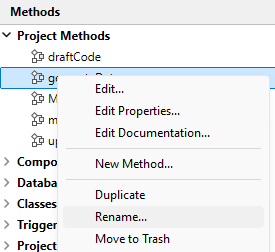
Lorsque vous sélectionnez cette commande, une boîte de dialogue apparaît, vous permettant de saisir le nouveau nom de l’objet :
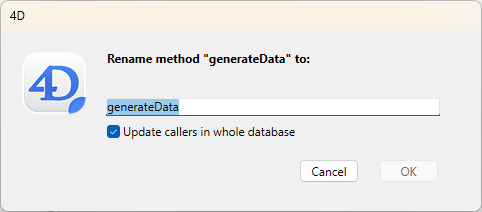
Le nouveau nom doit être conforme aux règles de nommage, sinon un avertissement apparaît lorsque vous validez la boîte de dialogue. Par exemple, vous ne pouvez pas renommer une méthode avec un nom de commande tel que "Alert".
Suivant le type d’objet que vous renommez (méthode projet ou variable), la boîte de dialogue de renommage contiendra ou non une option de propagation :
- Méthode projet : L'option Mise à jour des appelants dans toute la base de données renomme la méthode dans tout le code du projet qui y fait référence. Vous pouvez également décocher cette option afin, par exemple, de ne renommer la méthode que dans l'Explorateur lui-même.
- Variable process : L'option Renommer la variable dans toute la base de données permet de propager le renommage de la variable dans tous le code du projet qui la référence. Si vous désélectionnez cette option, la variable sera renommée uniquement dans la méthode courante.
- Variable locale : Pas d'option de propagation pour cet objet ; la variable n'est renommée que dans la méthode ou la classe courante.
Rechercher les éléments inutilisés
Deux commandes de recherche spécifiques vous permettent de détecter les variables et méthodes non utilisées dans le code de votre projet. Vous pourrez alors les supprimer afin, notamment, de libérer de l’espace mémoire. Ces commandes se trouvent dans le menu Edition de l'environnement de développement.
Chercher les méthodes et les variables globales inutilisées
Cette commande recherche les méthodes projet ainsi que les variables "globales" (variables process et interprocess) qui sont déclarées mais non utilisées. Les résultats de la recherche apparaissent dans une fenêtre de résultat standard.
Une méthode projet est considérée comme inutilisée lorsque :
- elle n’est pas dans la corbeille,
- elle n’est appelée nulle part dans le code 4D,
- elle n’est pas appelée par une commande de menu,
- elle n’est pas appelée sous forme de constante chaîne dans le code 4D (4D détecte un nom de méthode dans une chaîne même s’il est suivi de paramètres entre parenthèses).
Une variable process ou interprocess est considérée comme inutilisée lorsque :
- elle est déclarée dans le code 4D,
- elle n’est utilisée nulle part ailleurs dans le code 4D,
- elle n’est utilisée dans aucun objet de formulaire.
A noter que certains cas d’utilisation ne peuvent pas être détectés par la fonction - un élément considéré comme inutilisé peut être en réalité utilisé. C’est le cas par exemple dans le code suivant :
var v : Text :="method"
EXECUTE FORMULA("my"+v+String(42))
Ce code construit un nom de méthode. La méthode projet mymethod42 est considérée comme inutilisée alors qu'elle est appelée. Par conséquent, il est conseillé de vérifier l’inutilité des éléments déclarés inutilisés avant de les supprimer.
Chercher les variables locales inutilisées
Cette commande recherche les variables locales déclarées mais non utilisées. Les résultats de la recherche apparaissent dans une fenêtre de résultat standard.
Une variable locale est considérée comme inutilisée lorsque :
- elle est déclarée dans le code 4D,
- elle n’est utilisée nulle part ailleurs au sein de la même méthode.