セッションページ
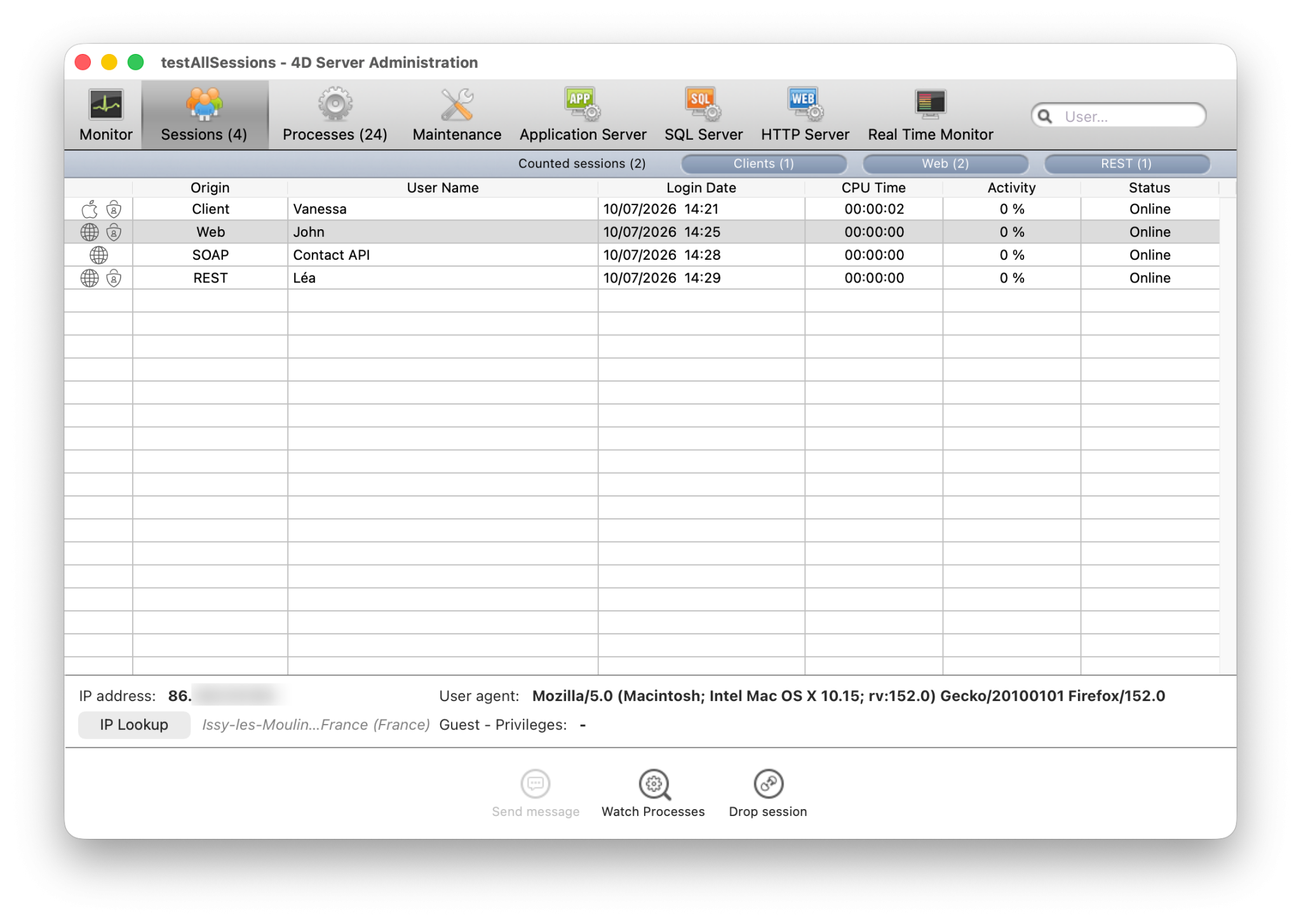
セッション ページには、サーバーに接続している全てのアクティブなセッションが表示されます。これにはクライアント接続、Web 接続、REST 接続、そしてSOAP セッションが含まれます。
ユーザー ボタンには、アクティブなセッションの合計数が括弧内に表示されます(この数には、ウィンドウにて適用されるフィルターは考慮されません)。
このページには、動的な検索エリアやフィルタリング制御、管理ボタンなどがあります。ヘッダーエリアをドラッグ&ドロップして、列の順番を入れ替えることができます。
また、ヘッダーをクリックすると、リストの値が並べ替えられます。クリックするごとに昇順/降順が入れ替わります。

セッションの一覧
各行は一つのアクティブなセッションを表します。
リストには、以下の情報が表示されます:
- セッションの種類を表すアイコン(macOS クライアントセッションにはApple アイコン、Windows クライアントにはWindows アイコン、Web、REST、SOAP セッションには地球アイコン)。また、セッションが認証されているかどうかを表す追加のインジケーターも表示されます。
- オリジン: セッションの種類(クライアント、Web、REST、あるいはSOAP)。
- ユーザー名: 接続している4D ユーザーの名前、または
SET USER ALIASコマンドを使用して定義されているエイリアス(適用可能な場合)。 Web、REST、あるいはSOAP セッションに対しては、setPrivileges()関数のuserNameプロパティを使用してセッションにユーザー名が割り当てられてない限り、ユーザー名は表示されません。 - ログイン日: セッションが確立された日付と時刻。
- CPU時間: セッションが作成されてから消費したCPU 時間。
- Activity: セッションに対して現在割り当てられているサーバーアクティビティの割合(動的な値)。
- ステータス: セッションのステータス。クライアントセッションの場合、オンライン、 スリープ中あるいは クライアント接続不可 のいずれかになります。 Web、REST、およびSOAP セッションは常にオンライン ステータスとなります。
セッションが選択されていれば追加の情報が詳細パネル内に表示されます。
セッション詳細パネル
セッションを選択すると追加の情報が下側のパネルに表示されます。
クライアントセッション
以下の情報が表示されます:
- システムユーザー名: リモートマシン上で開かれたOSセッションの名前。
- IP アドレス: セッションを開いたリモートマシンのIP アドレス。
- マシン名: リモートマシンの名前。
- 4D Write Pro: セッションユーザーが、4D Write Pro へのアクセスが付与されたグループに属しているかどうかを表します。
- 4D View Pro: セッションユーザーが、4D View Pro へのアクセスが付与されたグループに属しているかどうかを表します。
REST、Web、およびSOAPセッション
詳細パネルは以下のような情報を表示します:
- ゲストステータス: セッションがゲストセッションかどうかを表します。ゲストセッションとは未認証のWeb セッションです。
- 権限: セッションに割り当てられた権限の一覧。
- IP アドレス: セッションを開いたリモートマシンのIP アドレス。
- ユーザーエージェント: クライアントアプリケーション、ブラウザ、あるいはセッションを開始したサービスを識別します。
IP検索ボタン
公開IP アドレスが表示されている場合、IP 検索ボタンが有効化されます。このボタンをクリックすることで、選択されたセッションの位置情報を取得することができます。
もしその情報が利用可能な場合、City, Country のフォーマットでIP 検索ボタンの横に位置が表示されます。そうでない場合Not found が表示されます。
検索とフィルタリング
検索バー
検索フィールドを使用して、入力されたテキストに対応する行だけをリストに表示させ、行数を減らすことができます。検索は、ユーザー名、マシン名、セッション名、および IP アドレス 列に対して実行されます。
テキストが入力されると、リストはリアルタイムで更新されます。
値をセミコロン(;) で区切ることで、複数の値を使用して検索をおこなうことができます。この場合、値はOR 演算子を使用して結合されます。
例えば、以下のように入力した場合:
John;Mary;REST
検索可能カラム内でJohn、Mary、あるいは REST を格納している行のみが表示されます。
セッションタイプフィルター
セッションページでは特定のタイプのセッションのみを表示するクイックフィルターも提供しています。
以下のフィルターが利用可能です:
- カウントされたセッション: ライセンスを消費しているとカウントされるセッションのみを含めます。
- クライアント: デスクトップクライアントセッションのみを含めます。
- Web: Web およびSOAP セッションのみを含めます。
- REST: REST セッションのみを含めます。
フィルターは個別に有効化/無効化したり、また他のフィルターと組み合わせることができ、セッションリストに即座に適用されます。
管理ボタン
管理ボタンは三つあります: メッセージ送信 は一つ以上のクライアントセッションが選択されている場合に利用可能です。プロセス監視 はタイプに関わらず単一のセッションが選択されているときに利用可能で、またセッションをドロップ はタイプに関わらず一つ以上のセッションが選択されているときに利用可能です。 Shift キーを押しながらクリックして連続した行を、あるいは Ctrl (Windows) / Command (macOS) キーを押しながらクリックして連続しない行を複数選択できます。
メッセージ送信
このボタンを使用して、選択したクライアントセッションにメッセージを送信できます。クライアントセッションが選択されていないと、ボタンを使用できません。ボタンをクリックするとダイアログボックスが表示され、メッセージを入力できます。ダイアログにはメッセージを受信するクライアントセッションの数が表示されます:

このメッセージは対応するリモートマシン上でアラートとして表示されます。
SEND MESSAGE TO REMOTE USER コマンドを使用することで同じアクションをプログラムで実行することができます。
プロセス監視
このボタンをクリックすると、選択されたセッションに割り当てられたプロセスを、管理ウィンドウのプロセス ページ に直接表示させることができます。
プロセスのリストは選択されたセッションのUUID を使用して自動的にフィルタリングされます。
複数のセッションが選択された場合、このボタンは無効化されます。
セッションをドロップ
このボタンは、選択したクライアントセッションの接続を強制的に解除するために使用します。
セッションが接続解除される前に、操作を実行するかキャンセルするかを確認する確認ダイアログが表示されます(Alt キーを押しながらユーザーをドロップ をクリックすることでこの確認ダイアログを表示せずに即座に接続解除することもできます)。
DROP REMOTE USER コマンドを使用することで同じアクションをプログラムで実行することができます。
スリープしたクライアントセッションの管理
4D Server は、サーバーマシンへの接続がアクティブである間にスリープモードへと切り替わってしまった 4Dリモートアプリケーションを実行しているマシンについて、特別な管理をします。
この場合、リモートアプリケーションはスリープする前に4D Server へと自動的に知らせます。対応するクライアントセッションはステータスはSleeping へと変更されます。
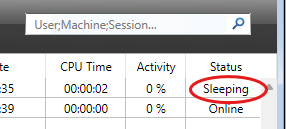
このステータスはセッションのコンテキストを保持しつつ、サーバー側のリソースを一部解放します。
リモートマシンがスリープモードから復帰した時、アプリケーションは再接続し、既存のセッションを復元します。
スリープ状態のクライアントセッションは、48時間活動がなかった場合には自動的にドロップされます。
この\タイムアウトを変更するには、SET DATABASE PARAMETER コマンドの Remote connection sleep timeout セレクターを使用します。
到達不能なピアの管理
QUIC ネットワークレイヤーが使用されている 場合、クライアント/サーバーせションでは予期せぬ接続切断の場合に 自動再接続機能 の恩恵を受けることができます。予期せぬ接続切断とは、例えば以下の様な場合を含みます:
- LAN ケーブルの抜き差し
- モバイル接続の移行
- スイッチの再起動
- 小さなネットワークエラー。
この機能はピアとの接続が切断された場合の、サーバー側とクライアント側との両方をサポートしており、また設定可能なタイムアウトとリアルタイム情報も含みます。
到達不能イベント
QUIC ネットワークレイヤーは、リモート4D が予期せず対応できない状態になったときには、自動的に"到達不能"イベントを4D Server に送信します。逆に、4D Server が予期せず対応できない状態になったときには、リモート4D に"到達不能"イベントを自動的に送信します。どちらか側で"到達不能" イベントが受信されると、その情報はインターフェース内とマシンのSession オブジェクト内にて即座に反映されます。
リモート4D側が応答を停止した場合
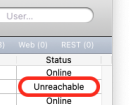
リモート4D が予期せず応答を停止した場合、サーバー管理ウィンドウ 上では、リモートセッションのステータス が到達不能 に設定されます。
サーバーが応答を停止した場合
4D Server が予期せず応答を停止した場合、リモートマシン上では再接続ダイアログボックスが表示されます:
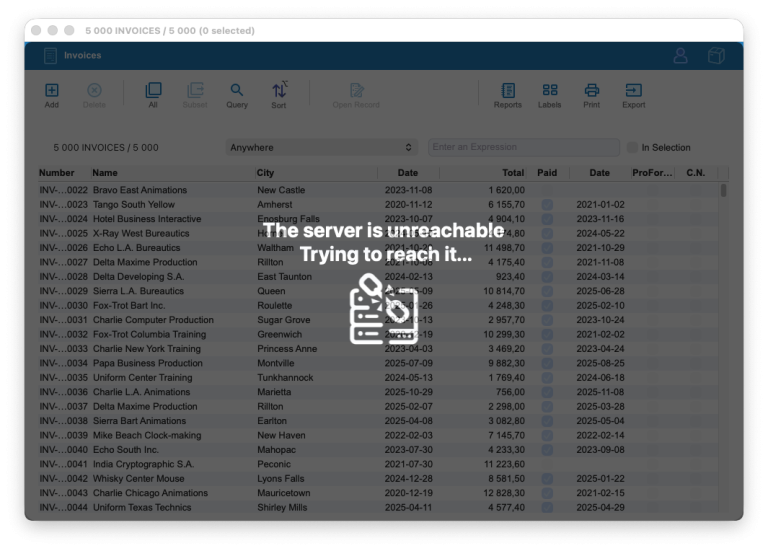
セッションオブジェクトの更新
どちらかで"Unreachable" イベントが受信された時、イベントを受信したマシン上のセッション内にてinfo.unreachableSince プロパティが作成され(サーバー上ではこれはProcess activity.sessions プロパティを通して読み出し可能です)、また最後の通信からの秒数をカウントし始めます。このプロパティを使用して独自の接続解除インターフェースを実装することができます。
接続の復元または解除
QUIC セッションのタイムアウトはデフォとでは900 秒(15分) となっており、これはSET DATABASE PARAMETER コマンドのQUIC session timeout セレクターを使用することで変更することができます。
QUIC セッションタイムアウトは、接続解除をモニターするために以下の様に自動的に使用されます:
- 接続がQUIC セッションタイムアウトに達する前に復元された場合、
info.unreachableSinceプロパティはセッションオブジェクトから自動的に削除されます。 - 接続がQUIC セッションタイムアウトに達するまでに復元されなかった場合、セッションは閉じられます。
- サーバーマシン上でリモートセッションが閉じられた場合、警告エントリーが診断ログ 内に書き込まれます。
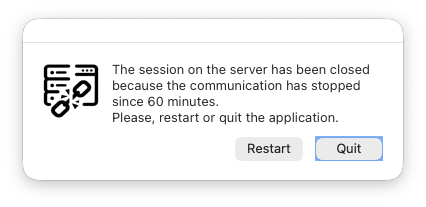
- リモートマシンにおいてサーバーセッションが閉じられた場合、警告ダイアログが表示され、ユーザーはリモートアプリケーションを再起動するか終了するかを選択することができます: