Menus
The interface of the 4D Server application is made up of the following menus: File, Edit, Window, Help. Under macos, certain commands are found in the 4D Server menu (application menu).
File
New
This hierarchical command has submenus that can be used to create a project or a new data file on the server machine.
Open.../Open Recent
These commands can be used to open a project with 4D Server. The Open Recent> command displays a submenu listing projects that have been opened recently by 4D Server. To reset this menu, choose the Clear Menu command.
Close Project...
This command closes the current project without exiting the 4D Server application. When you choose this command, the server shutdown dialog box appears so that you can set the disconnection mode for any connected clients.
Close Window
This command closes the window in the foreground of the 4D Server application.
Close All Windows
This command closes all the windows of the 4D Server application. Note that in this case only the fact that the Close Project... command is activated in the File menu will indicate whether the project is still published.
Register Current Application as Service/Unregister Current Application/Unregister All Server Services
(Commands available under Windows) These commands are used to manage the registering of the application as a Service.
Flush Data Buffers
This command can be used to "force" the saving of data in the cache to the disk. By default, 4D Server automatically flushes the cache after a time limit set in the Settings.
Backup
This command lets you launch a back-up of the project at any time. When you select this command, the following dialog box appears:

- The Backup button immediately launches a backup that takes the parameters set in the Settings of the application into account (files to be backed up, location of archives, number of sets kept, etc.).
- The Database Properties button opens the Backup theme of the Settings, which lets you view and, if necessary, modify the current backup settings.
- The Cancel button interrupts the backup process.
Restore...
This command displays an open file dialog box so that you can select the archive to restore.
Quit
This command lets you close the 4D Server application.
Under macos, the Quit command is located in the 4D Server menu (application menu).
Edit
The Edit menu of 4D Server includes standard copy/paste commands, the Show Clipboard command, etc.
This menu also includes the Preferences... (under Windows) and Settings command, which display the corresponding dialog boxes of the application. These dialog boxes are used to define developer's preferences and various settings of the project.
Under macos, the Preferences... command is located in the 4D Server menu (application menu).
The Edit menu also includes the Detach Debugger and Attach Debugger At Startup commands, allowing you to control the debugging of the code:
Detach Debugger
If you select this option, the debugger can be attached to a remote 4D. The menu command becomes Attach Debugger, so that you can attach the debugger back to the server (if not still attached to a remote 4D).
Attach Debugger At Startup
(selected by default) This option automatically attaches the debugger to the server each time the project is launched. Deselect this option if you want to attach permanently the debugger to a remote 4D.
Warning: If this option is selected for a server which is subsequently launched in headless mode, it will not be possible to use the debugger on this server.
For more information, please refer to Debugging from Remote Machines.
Window
The first part of the Window menu includes standard commands for organizing workspace windows (these commands differ depending on the platform).
It also contains display commands for windows specific to 4D Server:
Administration
This command displays the 4D Server Administration window if it has been closed or minimized.
Project Dependencies
Displays the Dependency manager.
Runtime Explorer
This command displays the 4D Server Runtime Explorer window.
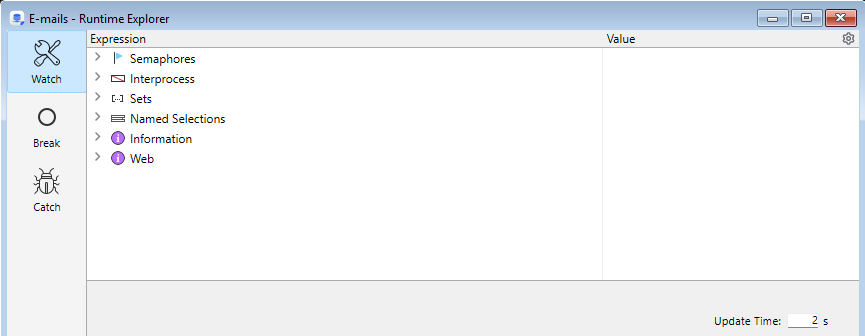
The Runtime Explorer enables you to view the status of the database various structural elements and to check that the available resources are correctly managed. The Runtime Explorer is particularly useful while developing or analyzing a database.
The Runtime Explorer window contains four pages that can be accessed by clicking on the following buttons: Watch, Process, Break and Catch. The Runtime Explorer works the same way in 4D Server and 4D.
Data Explorer in Browser
Displays the Data Explorer in your default browser.
Qodly Studio
Displays the Qodly Studio interface in your default browser on the server machine.
Preview Qodly Application
Displays the start page of your Qodly application in your default browser on the server machine. See this section for more information.
Help
Maintenance Security Center
This command displays the Maintenance and Security Center (MSC) which groups together all the tools required for verification, analysis, maintenance, back-up, compacting and encryption of data and structure files. This command is available even when no project is opened by 4D Server: in this case, it can be used to open a project in "maintenance mode" (it displays the standard open file dialog box so that you can designate the project to be opened). Maintenance mode is used more particularly for operations such as compacting or opening damaged projects.
Online documentation
Opens the 4D documentation home page.
License manager...
This command displays the License manager, used to view, manage, and activate licenses in your 4D environment.
About 4D Server...
Displays the 4D Server About... window.