Single Sign On (SSO)
4D Server allows you to implement SSO (Single Sign On) capabilities in your client-server solutions on Windows.
Implementing SSO in your 4D solutions will allow users to access the 4D application on Windows without needing to reenter their password when they are already logged into the Windows domain of their company (using Active Directory). Behind the scenes, the 4D Server application delegates the authentication to Active Directory and gets the Windows session login, which you can use to log the 4D user into the application by means of your standard login method.
Requirements
The SSO feature is available:
- with 4D Server applications on Windows (4D single-user applications do not support SSO),
- with the QUIC or ServerNet network layer enabled.
Enabling the SSO feature
By default, the SSO feature is not enabled in 4D Server. To benefit from this feature, you need to set the Authentication of user with domain server option on the Client-Server/Network options page of the Settings dialog box of 4D Server:
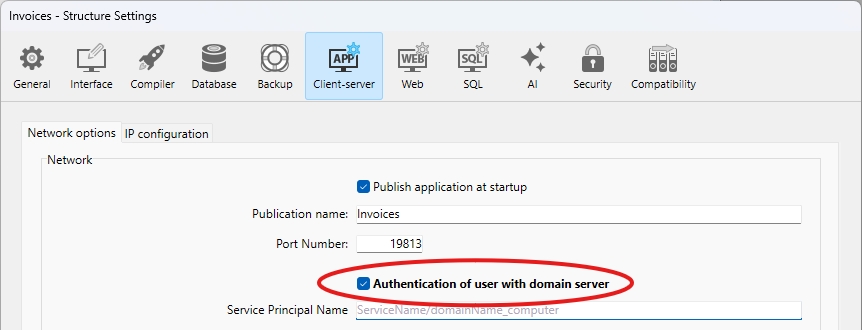
When you check this option, 4D transparently connects to the Active directory of the Windows domain server and gets the available authentication tokens.
This option offers standard authentication through the NTLM protocol. 4D supports both NTLM and Kerberos protocols. The protocol used is automatically selected by 4D depending on the current configuration. If you want to use the Kerberos protocol, you need to fill in the additional SPN field as well (see below).
Enabling Kerberos
If you want to use Kerberos as your authentication protocol, you also need to fill in the Service Principal Name option on the Client-server/Network options page of the Settings dialog box:

This option declares the SPN as set in the Active Directory configuration. A service principal name is a unique identifier of a service instance. SPNs are used by Kerberos authentication to associate a service instance with a service logon account. This allows a client application to request that the service authenticates an account even if the client does not have the account name. For more information, please refer to the SPN page on the MSDN web site.
The SPN identifier must respect this pattern:
- "ServiceName/FQDN_user" if the SPN is a computer attribute
- "ServiceName/FQDN_computer" if the SPN is a user attribute
Where:
- ServiceName is the name of the service which the client wants to authenticate.
- The Fully Qualified Domain Name (FQDN) is a domain name that specifies its exact location in the tree hierarchy of the Active Directory for both computers and users.
In 4D applications, the SPN can be set:
- in the structure settings, for use with 4D Server.
- or in the user settings for deployment needs.
Implementing SSO
When SSO features are enabled, you can rely on user authentication based on Windows session credentials to open a user session on 4D Server.
Keep in mind that the SSO feature only provides you with an authenticated login; it is up to you to pass this login to your standard 4D login method. When a 4D remote application tries to connect to the server, you have to call the Current client authentication command, which will return the user login, as defined in the Active Directory. You can then pass this login to your own identification system (using the built-in user and groups, the LDAP commands, or any custom mechanism) to open the appropriate session for the remote user in your 4D application.
This principle is illustrated in the following graphic:
The Current client authentication command must be called in the On Server Open Connection database method, which is called each time a remote 4D opens a new connection to the 4D Server application. If authentication fails, you have to return a non-null value in the $status to reject the connection.
Using the Current client authentication command
To call the Current client authentication command, use the following syntax:
$login:=Current client authentication($domain;$protocol)
Where:
- $login is the ID used by the client to log into the Active Directory (text value). You need to use this value to identify the user within your project. If the user is not correcty authenticated, an empty string is returned and no error is returned.
- $domain and $protocol are optional text parameters. They are filled by the command and allow you to accept or reject connections depending on these values:
- $domain is the Active Directory domain name
- $protocol is the name of the protocol used by Windows to authenticate the user.
Requirements for SSO
4D Server handles various SSO configurations, depending on the current architecture and settings. The protocol used for authentication (NTLM or Kerberos) as well as information returned by the Current client authentication command depend on the actual configuration, if all requirements are respected (see below). The protocol actually used for authentication is returned in the protocol parameter of the Current client authentication command.
The following table provides the requirements for using NTLM or Kerberos authentication:
| NTLM | Kerberos | |
|---|---|---|
| 4D Server and 4D remote are on different machines | yes | yes |
| 4D Server user is on domain | yes | yes |
| 4D remote is on the same AD as 4D Server user | yes or no(*) | yes |
| SPN is filled in on 4D Server | no | yes(**) |
| Information returned by Current client authentication if requirements are respected | login=expected login, domain=expected domain, protocol="NTLM" | login=expected login, domain=expected domain, protocol="Kerberos" |
(*) The following specific configuration is supported: the 4D remote user is a local account on a machine that belongs to the same AD as 4D Server. In this case, the domain parameter is filled with the 4D Server machine name. Note that the support depends on actual user settings: if not available, empty strings are returned.
(**) If all Kerberos requirements are respected but the Current client authentication command returns "NTLM" in protocol, this means that you are facing one of the following situations:
- The SPN syntax is not valid; in other words, it does not respect the constraints imposed by Microsoft.
- Or, the SPN has duplicates in the AD. This issue needs to be fixed by the AD administrator.
A valid syntax does not mean that the SPN declaration itself is correct; more specifically, if the SPN does not exist in the AD, Current client authentication returns empty strings.