Interface 4D Write Pro
4D Write Pro Interface offers a set of palettes, which allow end users to easily customize a 4D Write Pro document.
Um desenvolvedor 4D pode facilmente implementar essas paletas em sua aplicação. Thus, end users can manage all 4D Write Pro properties, such as fonts, text alignment, bookmarks, table layout, and frames.
Installation & documentation
4D Write Pro Interface is a 4D component that needs to be installed in your project. 4D Write Pro Interface source files are provided on Github.
La documentación principal de la interfaz de 4D Write Pro se encuentra en el manual Diseño 4D. Você encontrará abaixo:
- the Table Wizard configuration documentation,
- a I.A. integrada. documentation.
Assistente de tabelas
The Table Wizard is here to further simplify table creation based on database data using contexts, data sources, and formulas.
The Table Wizard, accessible to end-users, loads templates provided and configured by 4D developers. This enables developers to customize the template according to the specific use cases and business requirements of the users.
The Table Wizard comes with default templates and themes, which developers can configure to adapt its content to match the specific requirements of the application.
To implement the Table Wizard in your application, the developers are able to create and configure template files.
Interface do assistente de tabela WP
The user opens the Table Wizard dialog from the "Insert table" menu item in 4D Write Pro interface toolbar and sidebar.

From this interface, the user can select a template or a table from the first drop-down list and a theme from the second.
Em Colunas:
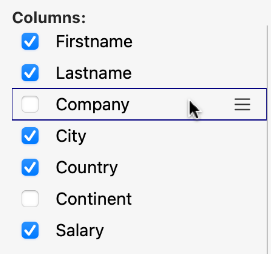
Depending on the user's selection of a template or a table, the user can view the list of fields stored in the template (Blob and object types are automatically excluded). They can then select columns to display in the table by checking the box in front of the field name and order them by moving and dragging the fields list.
Em linhas:
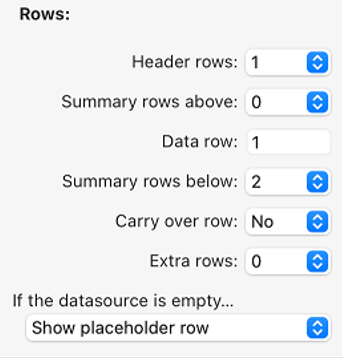
In the Table Wizard, the user can also define the number of header rows and extra rows (0 to 5 each), set break rows (summary rows) above or below the data row, and choose to show/hide carry-over rows.
In addition, the user has the possibility to choose the table's behavior when its datasource is empty with the following options: Show data row, Hide date row, Hide table, Show placeholder row.
No ecrã:
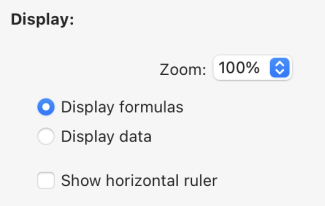
The user adjusts the zoom level according to their preference by selecting the desired option from a drop-down list, uses radio buttons to display formulas or data for clear presentation, and chooses to display a horizontal ruler using a checkbox.
Tras finalizar la creación y personalización de la tabla, el usuario puede hacer clic en el botón Insertar para añadir la tabla a su documento WP.
Once the table has been integrated into the document, the user can customize its style. As ferramentas de formatação da barra de ferramentas e da barra lateral ainda estão disponíveis.
Configuração do modelo do WP Table Wizard
A configuração dos modelos inclui:
- Definición de tablas y campos, así como preparación de fórmulas adaptadas a la aplicación desde el archivo de plantilla.
- Traducción de nombres de tablas, campos y fórmulas del archivo de traducción.
- Diseño de estilos gráficos y temas personalizados a partir del archivo de temas.
These three types of files contribute to the configuration of the Table Wizard, and while each serves a distinct purpose, none of them are considered essential components.
Arquivos de modelo
O ficheiro modelo permite-lhe definir o seguinte:
- a fórmula que retorna uma seleção de entidades usadas como fonte de dados para a tabela,
- as fórmulas de interrupção (se for possível inserir uma linha de interrupção)
- os atributos dataclass que podem ser usados como colunas da tabela,
- the formulas available as contextual menus inside break rows, carry-over row, placeholder row or extra rows.
O arquivo modelo deve ser armazenado em uma pasta "Resources/4DWP_Wizard/Templates" em seu projeto.
O arquivo de modelo no formato JSON contém os seguintes atributos:
| Atributo | Tipo | Obrigatório | Descrição |
|---|---|---|---|
| tableDataSource | Text | x | Fórmula da fonte de dados da tabela |
| columns | Collection | x | Coleção de colunas de tabela |
| columns.check | Text | x | True quando a coluna já está selecionada no editor de modelos. False quando a coluna não está selecionada no editor de modelos. |
| columns.header | Text | x | Etiqueta mostrada ao usuário |
| columns.source | Text | x | Formula |
| breaks | Collection | Coleção de objetos de interrupção. A ordem das interrupções é importante. It corresponds to the order in the document when the breaks are above the data lines. | |
| breaks.label | Text | x | Etiqueta mostrada ao usuário |
| breaks.source | Text | x | Formula |
| breakFormulas | Collection | Coleção de objetos de fórmula aplicáveis a linhas de quebra | |
| breakFormulas.label | Text | x | Etiqueta mostrada ao usuário |
| breakFormulas.source | Text | x | Formula |
| bcorFormulas | Collection | Collection of formula objects applicable to bottom carry over rows | |
| bcorFormulas.label | Text | x | Etiqueta mostrada ao usuário |
| bcorFormulas.source | Text | x | Formula |
| extraFormulas | Collection | Coleção de objetos de fórmula aplicáveis a linhas extras | |
| extraFormulas.label | Text | x | Etiqueta mostrada ao usuário |
| extraFormulas.source | Text | x | Formula |
| placeholderFormulas | Collection | Collection of formula objects that are inserted in the placeholder row |
If your application is likely to be run on a 4D with language set to French, make sure that you use tokens in your formulas so that they are correctly interpreted no matter the user's language configuration.
Exemplo
Eis um breve exemplo do aspeto do seu ficheiro JSON:
{
    "tableDataSource": "ds.People.all().orderBy(\"toCompany.name asc, continent asc, country asc, city asc\")",
    "columns": [{
            "check": true,
            "header": "Firstname",
            "source": "This.item.firstname"
        }, {
            "check": true,
            "header": "Lastname",
            "source": "This.item.lastname"
        }, {
            "check": true,
            "header": "Salary",
            "source": "String(This.item.salary;\"###,###.00\")"
        }
    ],
    "breaks": [{
            "label": "Company",
            "source": "This.item.toCompany.name"
        }
    ],
    "breakFormulas": [{
            "label": "Company",
            "source": "This.item.toCompany.name"
	}, {
            "label": "Sum of salaries",
            "source": "String(This.breakItems.sum(\"salary\"); \"###,###.00\")"
        }
    ],
    "bcorFormulas": [{
            "label": "Sum of salaries",
            "source": "String(This.tableData.sum(\"salary\"); \"###,###.00\")"
        }
    ],
    "extraFormulas": [{
            "label": "Sum of salaries",
            "source": "String(This.tableData.sum(\"salary\"); \"###,###.00\")"
        }
    ]
}
Arquivos de tradução
Translation files translate the names of templates, themes, tables, fields, and formulas. Estes arquivos são adicionados à pasta "Resources/4DWP_Wizard/Translations" em seu projeto.
Each translation file must be named with the corresponding language code (for example "en" for English or "fr" for French).
O arquivo de tradução no formato JSON contém os seguintes atributos:
| Atributo | Tipo | Obrigatório | Descrição |
|---|---|---|---|
| tabelas | Collection | Coleção de objetos de tabela traduzidos | |
| fields | Collection | Coleção de objetos de campo traduzidos | |
| formulas | Collection | Coleção de objetos fórmula traduzidos | |
| fileNames | Collection | Collection of translated fileName objects (applicable to the theme and template name) |
Whitin each one of these attribute, the translation object includes the following attributes:
| Atributo | Tipo | Obrigatório | Descrição |
|---|---|---|---|
| original | Text | x | Texto original destinado à tradução |
| translation | Text | x | Versão traduzida do texto original |
Defining these attributes within the translation object ensures proper organization and alignment between the source and translated content.
If the template name or the formula (break, carry-over row, or extra) exists in the translated file, its translation is applied in the Table Wizard. In addition, only the table defined within the translation file is displayed and translated.
The translation file serves an additional role when a user selects a table in the interface. Ele pode filtrar as tabelas e os campos propostos ao usuário. Por ejemplo, para ocultar los ID de tabla, este comportamiento es similar a los comandos SET TABLE TITLES y SET FIELD TITLES.
Exemplo
{
    "tables": [{
            "original": "People",
            "translation": "Personne"
        }
    ],
    "fields": [{
            "original": "lastname",
            "translation": "Nom"
        }, {
            "original": "firstname",
            "translation": "Prénom"
        }, {
            "original": "salary",
            "translation": "Salaire"
        }, {
            "original": "company",
            "translation": "Société"
        }
    ],
    "formulas": [{
            "original": "Sum of salary",
            "translation": "Somme des salaires"
        }
    ]
}
Arquivos de temas
A list of themes is provided by default in the 4D Write Pro Interface component, such as "Arial", "CourierNew" and "YuGothic", available in multiple variations like "Blue" and "Green". No entanto, você pode criar seu próprio tema colocando-o na pasta "Resources/4DWP_Wizard/Themes" em seu projeto.
O ficheiro de tema em formato JSON contém os seguintes atributos:
| Atributo | Tipo | Obrigatório | Descrição |
|---|---|---|---|
| default | Object | Objeto que contém o estilo padrão aplicável a todas as linhas. | |
| tabela | Object | Objeto que contém a definição de estilo aplicável à tabela. | |
| rows | Object | Objeto que contém a definição de estilo aplicável a todas as linhas. | |
| cells | Object | Objeto que contém a definição de estilo aplicável a todas as células. | |
| header1 | Object | Objeto que contém a definição de estilo aplicável à primeira linha de cabeçalho. | |
| header2 | Object | Object containing the style definition applicable to the second header row. | |
| header3 | Object | Objeto que contém a definição de estilo aplicável à terceira linha de cabeçalho. | |
| header4 | Object | Object containing the style definition applicable to the fourth header row. | |
| header5 | Object | Objeto que contém a definição de estilo aplicável à quinta linha de cabeçalho. | |
| headers | Object | Object containing the style definition applicable to the header rows, if a specific header (like header1, header2...) não está definido. | |
| data | Object | Object containing the style definition applicable to the repeated data row. | |
| break1 | Object | Objeto que contém a definição de estilo aplicável à primeira linha de quebra. | |
| break2 | Object | Objeto que contém a definição de estilo aplicável à segunda linha de quebra. | |
| break3 | Object | Objeto que contém a definição de estilo aplicável à terceira linha de quebra. | |
| break4 | Object | Objeto que contém a definição de estilo aplicável à quarta linha de quebra. | |
| break5 | Object | Objeto que contém a definição de estilo aplicável à quinta linha de quebra. | |
| breaks | Object | Object containing the style definition applicable to the break rows, if a specific break (like break1, break2...) não está definido. | |
| bcor | Object | Object containing the style definition applicable to the bottom carry-over row. | |
| placeholder | Object | Object containing the default style applicable to the placeholder row. |
For every attribute used in your JSON file (header, data, carry-over, summary, and extra rows), you can define the following WP attributes, mentionned with their corresponding WP constant:
| Atributos WP | Constante WP correspondente |
|---|---|
| textAlign | wk text align |
| backgroundColor | wk background color |
| borderColor | wk border color |
| borderStyle | wk border style |
| borderWidth | wk border width |
| font | wk font |
| color | wk font color |
| fontFamily | wk font family |
| fontSize | wk font size |
| padding | wk padding |
Exemplo
{
    "default": {
           "backgroundColor": "#F0F0F0",
           "borderColor": "#101010",
           "borderStyle": 1,
           "borderWidth": "0.5pt",
           "font": "Times New Roman",
           "color": "#101010",
           "fontFamily": "Times New Roman",
           "fontSize": "7pt",
           "padding": "2pt"
    },
    "table": {
           "backgroundColor": "#E1EAF3"
    },
    "header1": {
           "textAlign": 2,
           "borderColor": "#41548F",
           "borderWidth": "1.5pt",
           "backgroundColor": "#979BA9",
           "color": "#F4F4FF",
           "font": "Times New Roman Bold"
    },
    "data": {
           "fontSize": "13pt",
           "textAlign": 0
    },
    "break1": {
           "textAlign": 2,
           "fontSize": "15pt"
    }
}
Veja também
4D Write Pro - Table Wizard (vídeo tutorial)
IA Integrada
You can use an integrated AI in the 4D Write Pro interface so that you can easily translate or enhance your documents without having to use an external AI application.
Once you have enabled the AI feature, you can display a chat box over your 4D Write Pro document and interact with chatGPT to modify the text of the selection or of the document itself.
The 4D Write Pro interface uses OpenAI, for which you need to provide your own key (see below).
On macOS, if you want to provide your users with Apple Intelligence Writing Tools so that they can proofread, rewrite, summarize, or change the tone of text directly within their documents, you might consider using the Writing Tools feature.
Limitations
In the current implementation, the feature has the following limitations:
- use of a predefined AI provider and necessity to pass your OpenAI key
- basic chatting features
- no image handling
- non-configurable predefined action commands
- predefined translations English/French and French/English only
Enabling the AI feature
The AI dialog box is available by clicking on a button in the 4D Write Pro interface. Este botão está escondido por padrão, você precisa habilitá-lo explicitamente.
To display the AI dialog box button, you need to:
- Get an API key from the OpenAI website.
- Execute the following 4D code:
WP SetAIKey ("<Your OpenAI Key>") //
No checking is done on the OpenAI key validity. Se for inválido, a caixa chatGPT permanecerá vazia.
O botão I.A. é exibido:

- in the 4D Write Pro Toolbar, in the Import Export tab,
- in the 4D Write Pro Widget, in the Font Style tab.
Click on the button to display the AI dialog box.
Diálogo IA
The 4D Write Pro AI dialog box allows a straightforward interaction between the chat area and the 4D Write Pro document.
Prompt area
At the bottom of the window, the prompt area allows you to enter any question to send to the AI.
To send your question to the AI, click on the Send button:

The button icon changes when the same request is sent again:

On the left side of this area, a pop up menu provides examples of common actions that can be usually delegated to the AI.
Selecting an action writes a corresponding question to the prompt. If necessary, you can modify the question and then to click on the Send button to actually send it:

Default translation actions are based upon the current 4D default configuration and depend on available languages.
Copy buttons
These buttons propose basic interactions between the chat area, the underlying 4D Write Pro document, and the clipboard:

- Return raw text/Return styled text: Copy the latest response or the selected response from the AI to the 4D Write Pro document at the current insertion point, replacing the selected text if any.
- Copy raw text/Copy styled text: Copy the latest response or the selected response from the AI in the clipboard.
In both cases, if the response was provided with styles, you can decide to copy the text with or without styles.
The chat box uses the Markdown language to format text. Basic styles such as bold, italic, underline, titles are supported. When pasting styled text from the AI in the 4D Write Pro area, you may lose some formatting information.
Área de chat
The Chat area displays the whole interaction between you and the AI. Você pode rolar e selecionar a parte que desejar.
To empty this area, you can click on the Erase button of the History area (resets the window and all interactions).
Histórico
The History area lists all your prompts sent to the AI. You can hide/show this area using the button on the top right corner of the Chat area.
The Erase button allows you to reset the whole window and erase all interactions. It is equivalent to close/reopen the AI dialog box.
Multi-level list style sheets
4D Write Pro Interface allows users to create and manage multi-level lists directly from both the toolbar and widget sidebar.
Toolbar:

Sidebar:
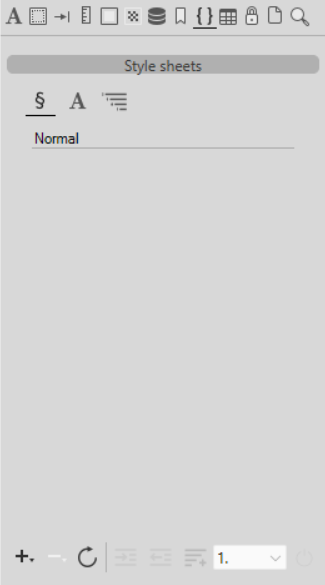
To manage multi-level list style sheets, click the  multi-level list button.
When the multi-level list mode is enabled, the Style Sheets panel displays the multi-level list style sheets defined in the document as well as predefined templates.

Managing multi-level style sheets
The Style Sheets panel allows you in general to:
 Create a new style sheet.
 Delete a style sheet.
 Update a style sheet.
Once a multi-level list style sheet is selected, the panel provides also tools to manage the hierarchy and numbering of the list:
 Increase the list level of selected paragraphs.
 Decrease the list level of selected paragraphs.
 Append a level to the list and create a new sub-level.
 Modify numbering formats.
 Concatenate numbering markers between levels.
Creating a style sheet
To create a multi-level list style sheet you can either:
-
Select and apply one of the predefined templates to the paragraph(s), the selected template and all it sub-levels are then displayed on the top part of the sytle sheets panel. You can customize its levels and formatting (such as numbering styles, colors, fonts, or hierarchy), and then create a new style sheet based on the resulting selection.
-
Duplicate one of the existing style sheets via the Duplicate option in the
bottom menu. -
Click the
button and then "New style sheet based on selection" after having selected paragraph(s) to use for the style sheet according to the following:- If the selected paragraph(s) use(s) a list marker, a new multi-level list style sheet made of one level is created based on the current formatting.
- If the selected paragraph(s) already use(s) a root-level or a sub-level of a multi-level list style sheet, the complete hierarchy is duplicated.
For detailed information about creating and configuring multi-level list style sheets by programming, see Multi-level list style sheets.
Applying a multi-level list
You can apply either a multi-level list style sheet defined in the document or one of the predefined templates to the selected paragraphs using the Style Sheets panel:

Predefined templates
The interface provides the following predefined multi-level list templates:
Technical Blueprint
Level 1: 1
Level 2: 1.1
Level 3: 1.1.1
Level 4: 1.1.1.1
Level 5: 1.1.1.1.1
Legal & Governance
Level 1: I.
Level 2: A.
Level 3: 1.
Level 4: a)
Level 5: (1)
Level 6: (a)
Level 7: (i)
Educational Material
Level 1: I.
Level 2: 1.
Level 3: 1.1.
Level 4: a.
Level 5: ●
Meeting Minutes
Level 1: 1.
Level 2: ●
Visual Hierarchy
Level 1: ♣ (Club)
Level 2: ♦ (Diamond)
Level 3: ■ (Square)
Level 4: □ (Hollow Square)
Level 5: ● (Disc)
Level 6: ○ (Circle)
Level 7: – (Dash)
Customizing predefined templates
You can customize the available templates to provide users with predefined multi-level lists that match the needs of your application.
The predefined multi-level list templates are defined in a JSON file named multiLevelStyles.json. This file is located in the 4D Write Pro Interface component Resources folder.
You can customize the available templates by adding your own multiLevelStyles.json file in either:
- the project's local Resources folder directly,
- a
4D WritePro Interfacefolder located within the project Resources folder.
If a multiLevelStyles.json file is present in both locations, the file located in the 4D WritePro Interface folder takes precedence.
Each template definition includes:
- a template name,
- one or more list levels,
- the 4D Write Pro attributes applied to each level. Any 4D Write Pro attribute can be used in a template definition.
You can use either the attribute names or the corresponding 4D Write Pro constants as JSON keys and values. For example, the following definitions are equivalent:
"listStyleType": "wk upper roman""wk list style type": "wk upper roman"
Exemplo
Example of a customized JSON file:
{
  "predefinedMultiLevelLists": [
    {
      "name": "Technical Blue Print Updated",
      "levels": [
        { "listStyleType": "wk decimal" },
        { "listStyleType": "wk decimal", "listConcatStringFormat": true }
      ]
    }
  ]
}