Create Swift formatter
OBJECTIFS
Create your first Swift formatters.
A formatter can be composed of both Swift and Kotlin code.
Object attribute Swift formatter
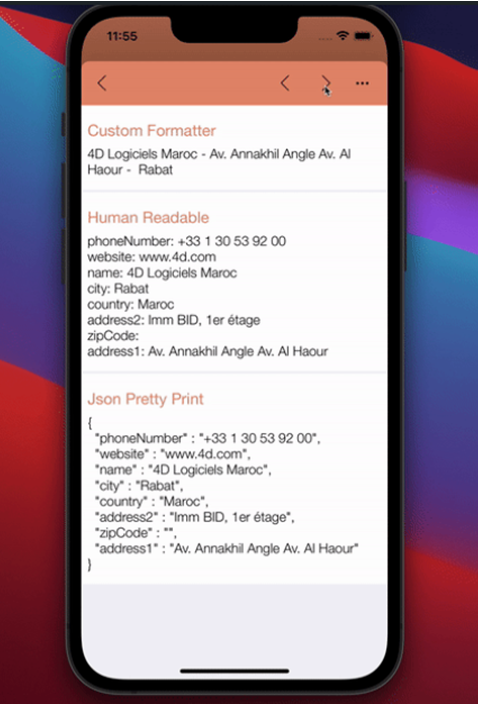
In the following example, we want to display an address getting only relevant values that are available in the following object using a Swift formatter
$Obj:=New object
$Obj.name:="4D SAS"
$Obj.address1:="66 rue de Sartrouville"
$Obj.address2:="Parc les Erables, bâtiment 4"
$Obj.zipCode:="78230"
$Obj.city:="Le Pecq"
$Obj.country:="France"
$Obj.phoneNumber:="+33 1 30 53 92 00"
$Obj.website:="fr.4d.com"

$Ent:=ds.Employees.get(4)
$Ent.Object_Attribute:=$Obj
$Ent.save()
Here is the manifest.json file:
{
    "name": "objectFormatter",
    "binding": "objectAddress",
    "type": "object",
    "target" : ["ios", "android"]

}
To get the number, the street, and the city, let’s build a custom Swift formatter:
import UIKit
import QMobileUI

extension UILabel {
    @objc dynamic var objectAddress: [String: Any]? {
        get {
            return nil
        }
        set {
            if let newValue = newValue {
                guard let value1 = newValue["name"] as? String,
                      let value2 = newValue["address1"] as? String,
                      let value3 = newValue["zipCode"] as? String,
                      let value4 = newValue["city"] as? String else {
                          return
                      }
                self.text = "\(value1) - \(value2) - \(value3) \(value4)"
            } else {
                self.text = ""
            }
        }
    }
}
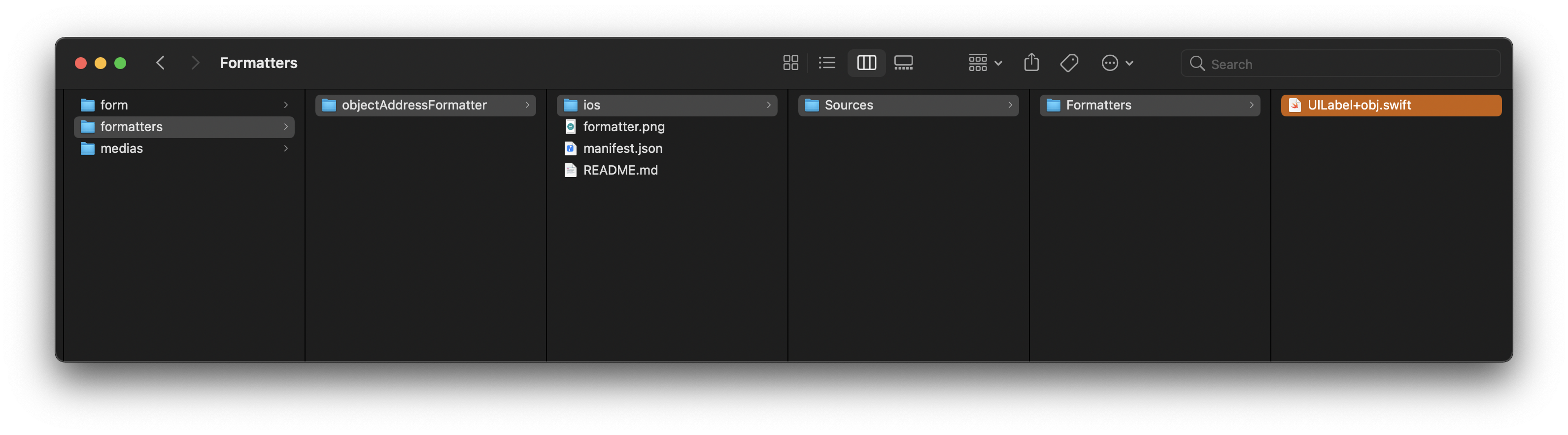
Putting all that together, you can save this formatter as a .swift file in the formatter folder and use it in your mobile project.
Check out the final result: